Creating Data Sets
Unlike individual charts and dashboard templates the data sets for the Birt reports can be created directly within the LyciaStudio.
The following sections of this document will use the same table and the same data set based on the table. Basically, you can use any table you have at your disposal to create a data set. For the sake of convenience we suggest that you add to your database and use from now on the following demonstration table:
CREATE TABLE product
(
product_name varchar(20),
date_sale date,
quantity int,
cost money
)
You can populate the table with any values or load the following values into it:
product_1|01/01/2000|105|53.54|
product_1|02/02/2000|87|64.00|
product_1|03/03/2000|123|49.70|
product_1|04/04/2000|45|60.87|
product_1|05/05/2000|99|34.46|
product_1|06/06/2000|130|35.79|
product_1|07/07/2000|145|40.56|
product_1|08/08/2000|120|55.78|
product_1|09/09/2000|60|90.67|
product_1|10/10/2000|71|92.45|
product_1|11/11/2000|35|100.40|
product_1|12/12/2000|20|120.00|
product_2|01/01/2000|24|250.54|
product_2|02/02/2000|13|345.00|
product_2|03/03/2000|20|400.70|
product_2|04/04/2000|9|390.87|
product_2|05/05/2000|19|410.46|
product_2|06/06/2000|15|287.79|
product_2|07/07/2000|27|300.56|
product_2|08/08/2000|21|326.78|
product_2|09/09/2000|18|402.67|
product_2|10/10/2000|10|378.45|
product_2|11/11/2000|29|321.40|
product_2|12/12/2000|24|279.00|
To create a data set on the above table:
1. In the Data Explorer view right-click the Data Sets item and select New Data Set.
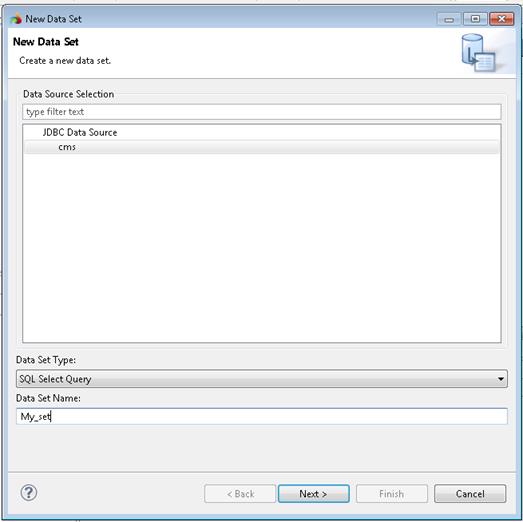
2. Select the data source for which the data set is created, give it a name and click Next.
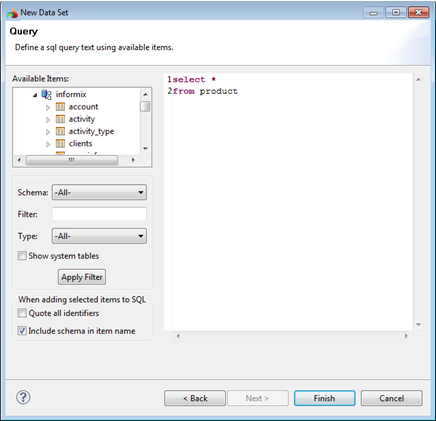
3. You will see the database structure on the left and will be able to create the query text. To add an element (i.e. a column name or a table name) at the position of the cursor, double-click it in the list on the left. You can also type the text of the query manually:
4. Click Finish to save the data set. The edit dialog will open. Here you can change the display names of the columns and values, set parameters, etc.
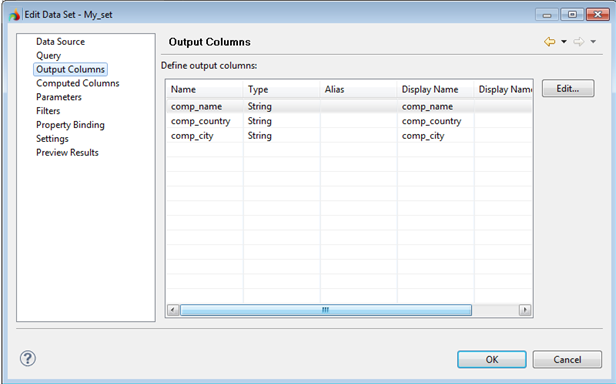
5. You can check whether the query actually returns some data by selecting the Preview Results from the list on the left.
6. After you click OK, the data source will appear in the Data Explorer.
