Setting Data Sources
To select the Data Source:
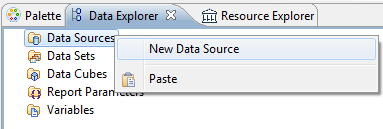
1. In the Data Explorer view right-click the Data Sources item and select New Data Source.
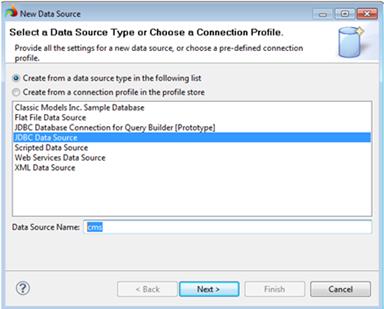
2. Select the JDBC Data Source option and enter the name of the data source below, then click Next:
3. In the next dialog you must first select a driver. For example, you may import an Informix driver.
a. If the driver of the database you need is not in the drop down list, click Manage Drivers button below.
b. In the JAR Files tab of the next dialog click Add button.
c. To set up the Informix driver, you need an Informix client installed on your machine. Select the Informix driver file called ifxjdbc.jar. Your Informix SDK may not include the driver. In this case you can download a jdbc driver from the IBM web site and install it.

d. Click OK.
e. Now you can select the installed driver from the list Driver Class.
f. Enter the driver URL. It should look as follows jdbc:informix-sqli://location:port-number/database_name:INFORMIXSERVER=server_name.
g. Enter the user name and the password for accessing the database.
h. Leave JNDI URL field empty.

4. You can click Test Connection button to verify the connection settings. If the connection was successful, click Finish. The data source will appear in the Data Explorer.
5. You can edit the data source later.
