Querix Menu Tool
Querix Menu Tool is powerful although it easy-to-use 4GL program with a user-friendly interface. It uses Querix 4GL functions to build, manage, and publish menus in the simplest and fastest way.
See the video or the guide below to learn how to use Querix Menu Tool
Querix Menu tool contains of 3 programs:
- -qxt_menu_deploy_db_schema is database init tool.
- -qxt_menu_admin is menu manager.
- -qxt_demo_menu is menu launcher.
1. Create database
Run qxt_menu_deploy_db_schema and type the name of the target database. The default database name is qxt_menu.
qxt_menu is used in qxt_menu_admin and qxt_demo_menu. You have to redefine database name in qxt_demo_menu.4gl and _qxt_menu_admin_db_globals.4gl if it's different from default one.
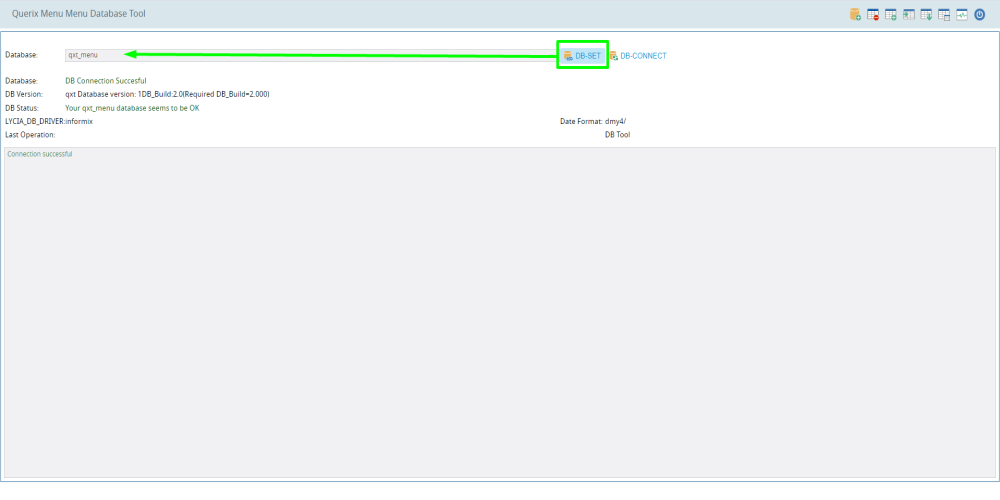
To change the database name before tables creation click the "DB-SET" button, type the name of the existent database and press Enter.
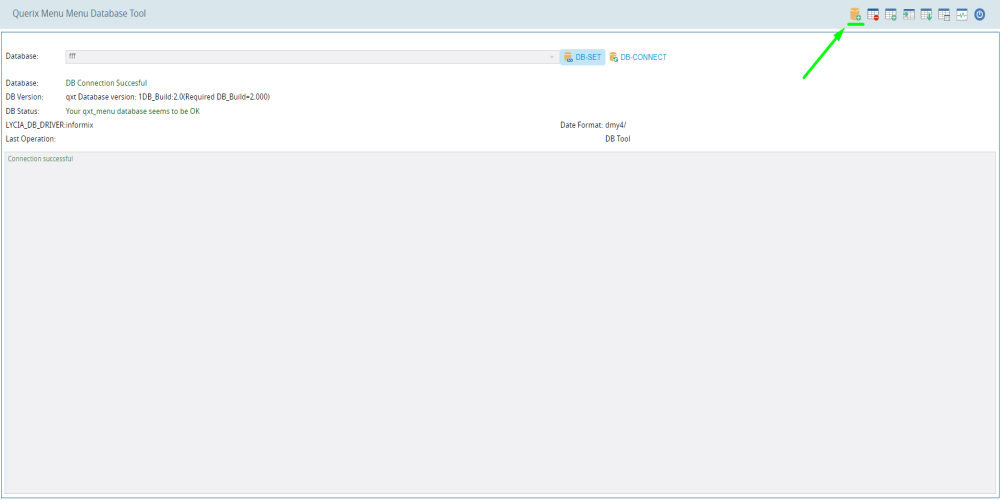
Click "Create tables" button after database is defined. All tables will be re-created(in case if similar tables already exist) and populated with the data.
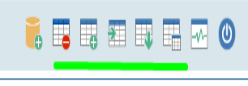
All menu table names start with the "qxt_" prefix. Users may do all the operations (create/delete/load/unload) with the tables separately by using the rest of the toolbar options:
2. Menu manager
Run qxt_menu_admin.
- Menu group/Menu command creation
Click the "Menu Item selection" toolbar button and click the menu item you need.
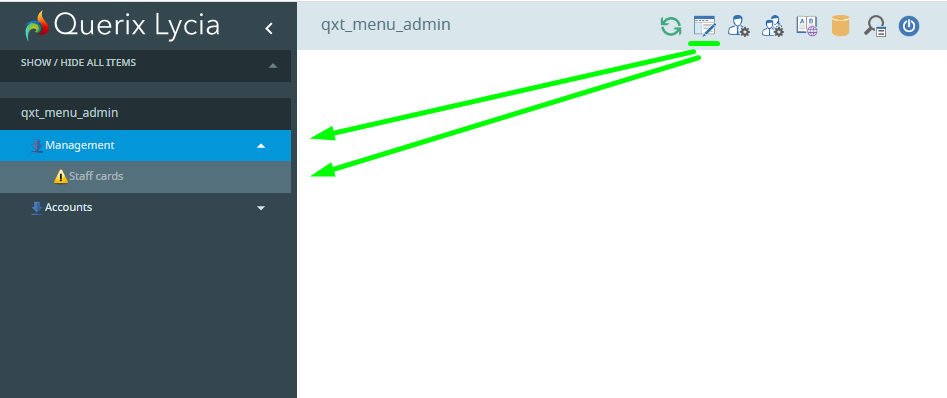
By selecting the Menu command, the user may only edit/delete the item. By selecting the Menu group, the user may edit/delete and create a new item on the same level (Parent level) as the Menu group has or inside the selected menu group (Sub level).
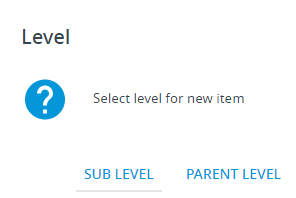
The Menu item form consists of next fields:
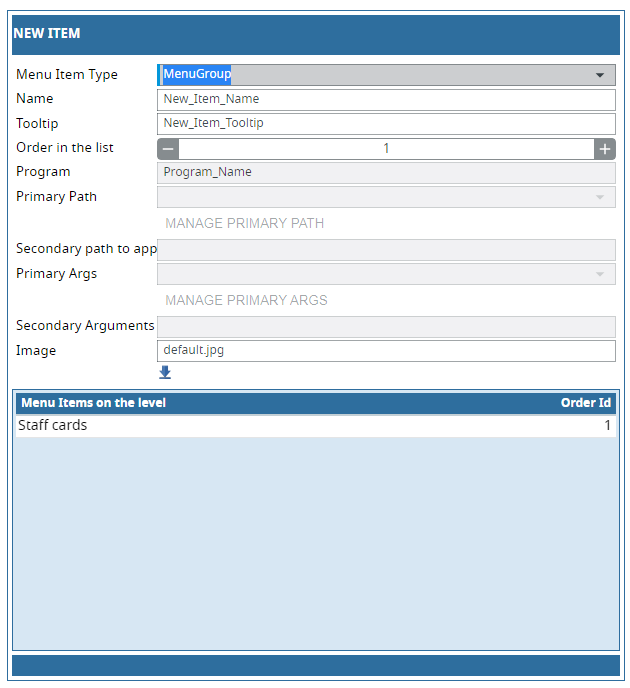
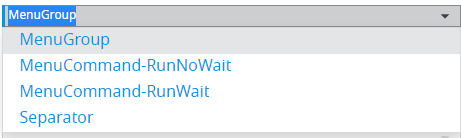
The Menu item type defines menu item: menu group, menu command runs applications WITHOUT waiting, menu command runs applications WITH waiting, separator(line/divider between menu items).
Name and tooltip of the menu item
Order in the list defines item order on the current level. All menu items at the current level with their order numbers are shown in the table below.
Program is program name to be run on menu command-click
Primary Path path to the program on application server relatively to qxt_demo_menu deployed application
Secondary path to app the same as Primary Path. Is used only if the Primary Path is not defined.
Primary Args arguments to be passed to the program
Secondary Arguments are the same as Primary Args. Is used only if Primary Args are not defined.
Image is an icon to be shown from the left side of the menu item. Menu item places without an image if the Image field is empty.
Click the "Save changes" button to create an item or apply changes to an existing one.
-
Users
Click the "User manager" toolbar button. The list of existent users is shown.
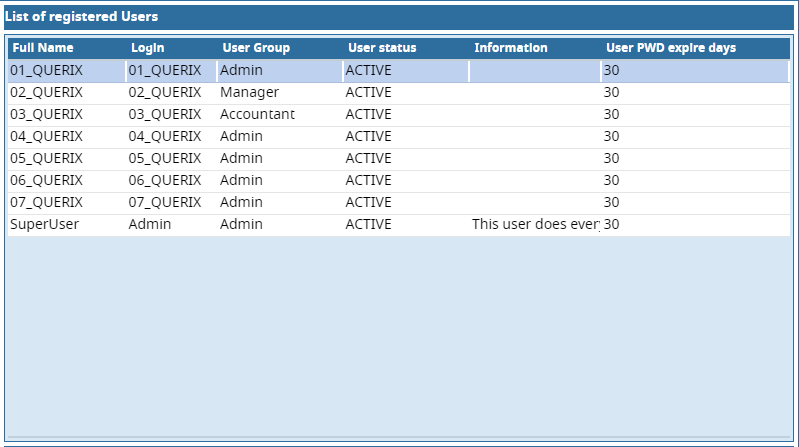
Using toolbar buttons user may create/edit/delete the user.
The "Clear password" toolbar button erases the password of the selected user and allows it to log in with an empty password.
The "Reset password flag" toolbar button allows the admin to expire the password immediately. The user will be requested for changing the password on the login step.
If the user forgot the password then "Clear password" + "Reset password flag" options are recommended. Next login with an empty password user may define a new password.
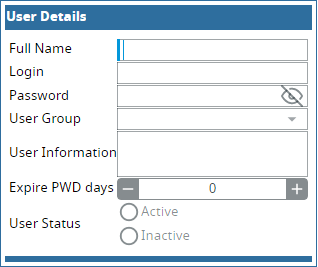
The user account consists of Full Name, Login(name is used to log in), password(is used to log in), user group(defines user permissions), User Information(some additional information about user), Expire PWD days(defines how many days password is valid. After it expire user will be requested for changing the password on login step)
User Status: Inactive users cannot log in to qxt_demo_menu.
-
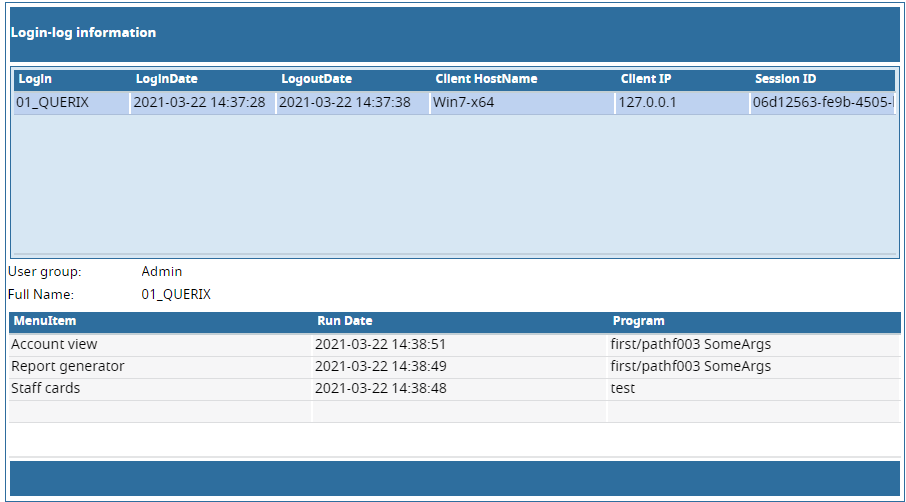
Log in journal
Click the "Login log viewer" toolbar button to see the event journal.
3. Menu launcher
Run the qxt_demo_menu application and log in with one of the existing users. Default users 01_QUERIX, 02_QUERIX and 03_QUERIX have different menus and belong to different user groups.