Compile and Recompile
From FGL Project Explorer, you can compile and recompile separate files.
Compiling Files
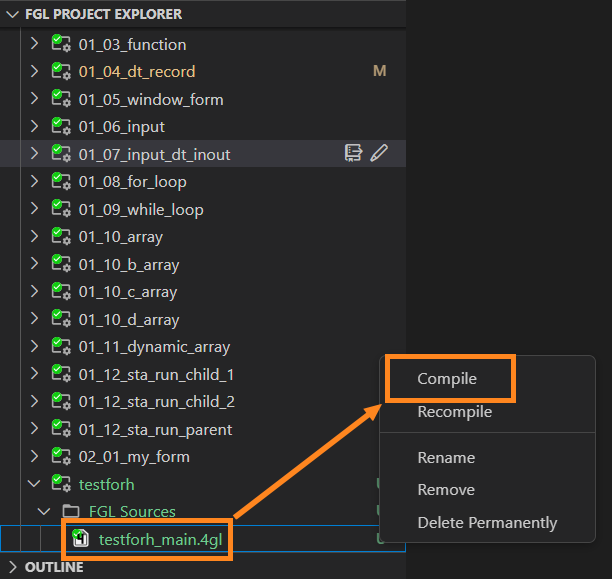
Step 1. Find the file in FGL Project Explorer, right-click it and select Compile:
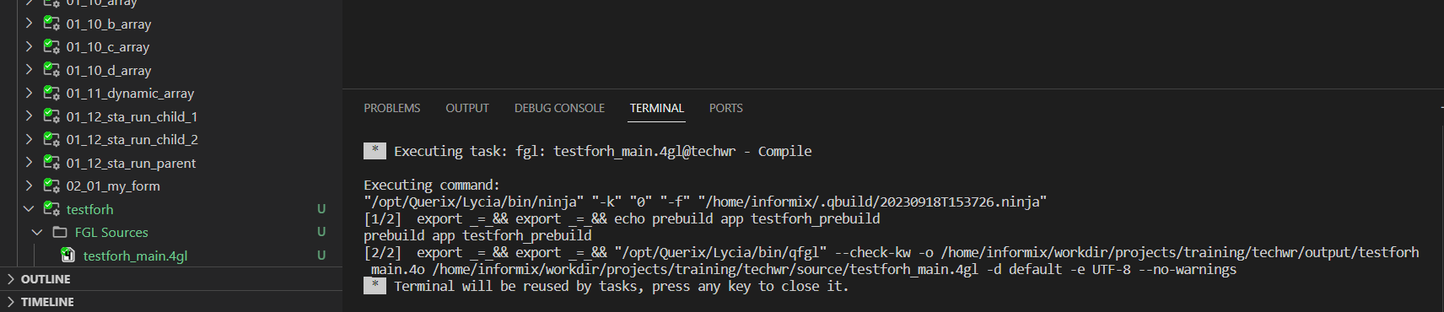
The Terminal tab of the Panel will display the details of compilation progress:
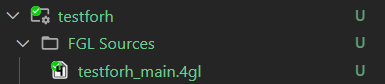
At successful compilation, there will be no warnings or errors. The compiled file will be displayed as green in FGL Project Explorer, with a green check mark sign on it:
At failed compilation, you will receive the following indicators:

- in the message in lower-right corner of VS Code’s main window, the task will be displayed as failed;
- in FGL Project Explorer, the failed-to-compile file will have a number of errors near its name, as well as in Workspace view;
- in FGL Project Explorer, the failed-to-compile file will have red cross icon on it;
- in Terminal tab of the Panel, LVSCE will display the failed status of the compilation, the path to the file that has errors, the indicator of the exact location of the errors, and a tip about how to fix them;
- in the Problems tab of the Panel, you will see short reports about the errors:

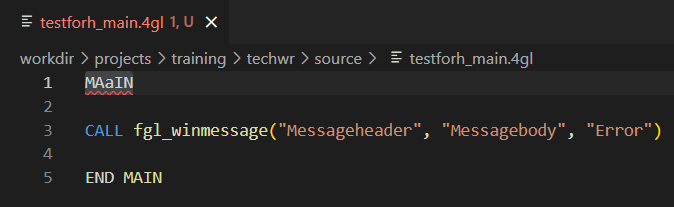
From this tab, you can quickly get to the error(s) in code. To do that, click the line with message of the error. VS Code will open the file and highlight the exact line that has that error:
Recompiling Files
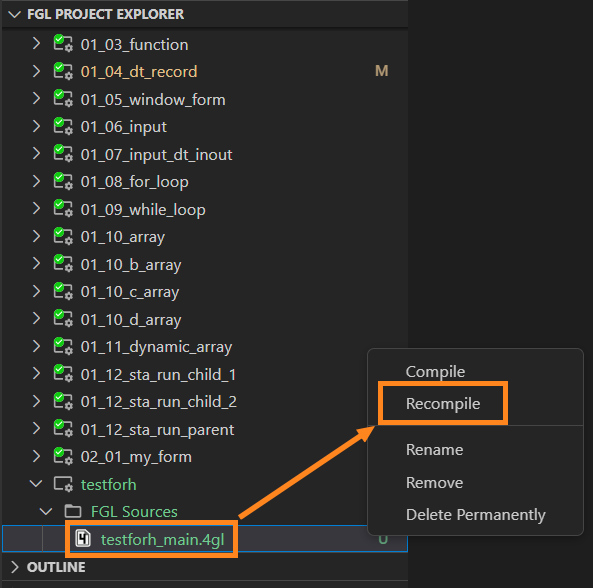
If you made changes to your file, you will need to recompile it. To do that, follow these steps:
Step 1. Find the file in FGL Project Explorer, right-click it and select Recompile:
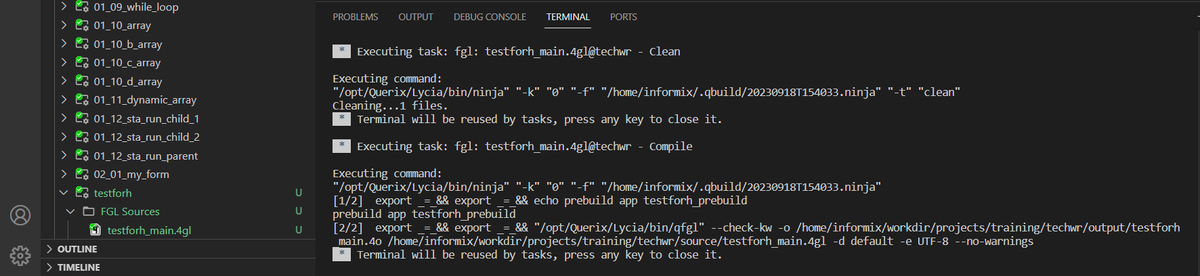
The Terminal tab of the Panel will display the details of recompilation progress. LVSCE will clean the output files that are associated with this program, and then recompile the program:
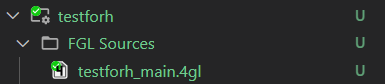
At successful recompilation, there will be no warnings or errors. Recompiled file will be displayed as green in FGL Project Explorer, with a green check mark sign on it:
At failed recompilation, you will receive the following indicators:
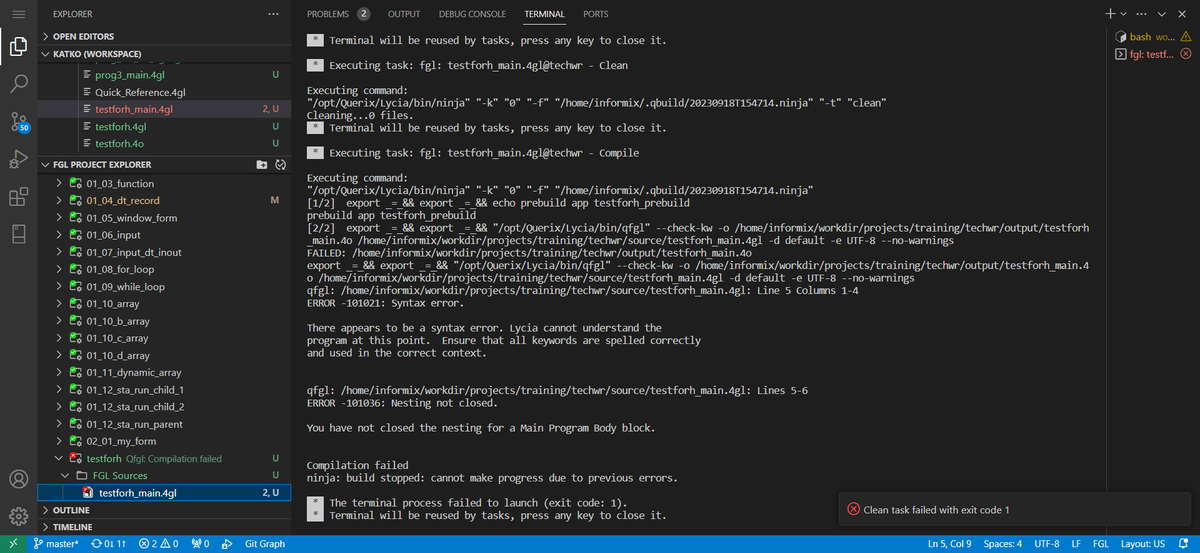
- in the message in lower-right corner of VS Code's main window, the task will be displayed as failed;
- in FGL Project Explorer, the failed-to-recompile file will have a number of errors near its name, as well as in Workspace view;
- in FGL Project Explorer, the failed-to-recompile file will have red cross icon on it;
- in Terminal tab of the Panel, LVSCE will display the failed status of recompilation, the path to the file that has errors, the indicator of the exact location of the errors, and a tip about how to fix them;
- in the Problems tab of the Panel, you will see short reports about the errors:
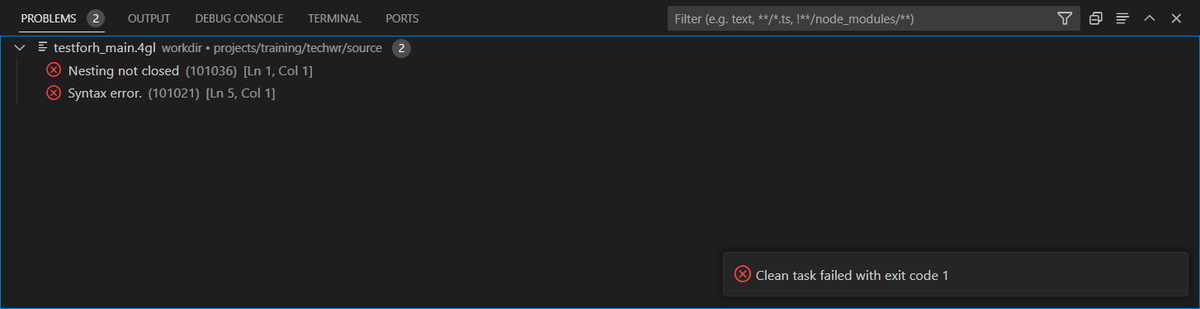
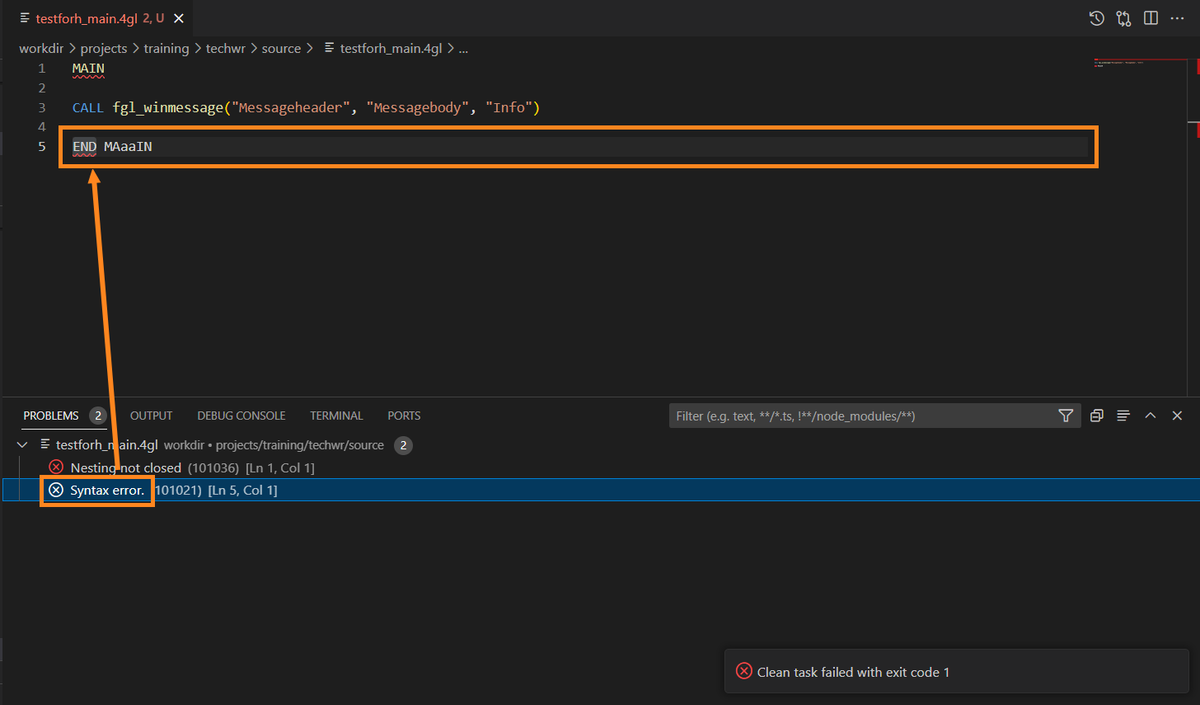
From this tab, you can quickly get to the error(s) in code. To do that, click the line with message of the error. VS Code will open the file and highlight the exact line that has that error:
See next: Debugging in LVSCE