Lycia VS Code Extension Configuration
Overview
Lycia offers broad opportunities for customizing your work environment per certain needs. We have an extensive information about how to precisely configure Lycia in the Configuration chapter of our documentation.
The configuration of LVSCE comes in two parts:
- LVSCE configuration (as described below);
- Lycia configuration (refer to the Lycia Configuration chapter for details).
Finding LVSCE Settings
LVSCE configuration is located in the Settings view of VS Code. You can access it in the following ways:
- use the CTRL + , keyboard shortcut;
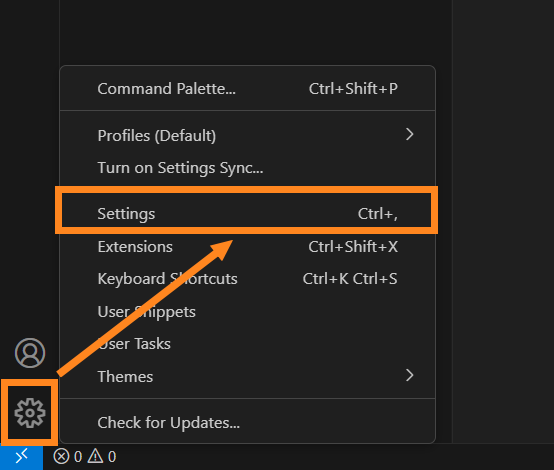
- in the bottom of the Main Toolbar, find the gear-shaped Settings button, and then select the Settings option:
- in VS Code’s main menu, select File → Preferences → Settings;
- use CTRL + SHIFT + P for opening the console, type Open Settings and select Preferences: Open Settings (UI) from the dropdown list.
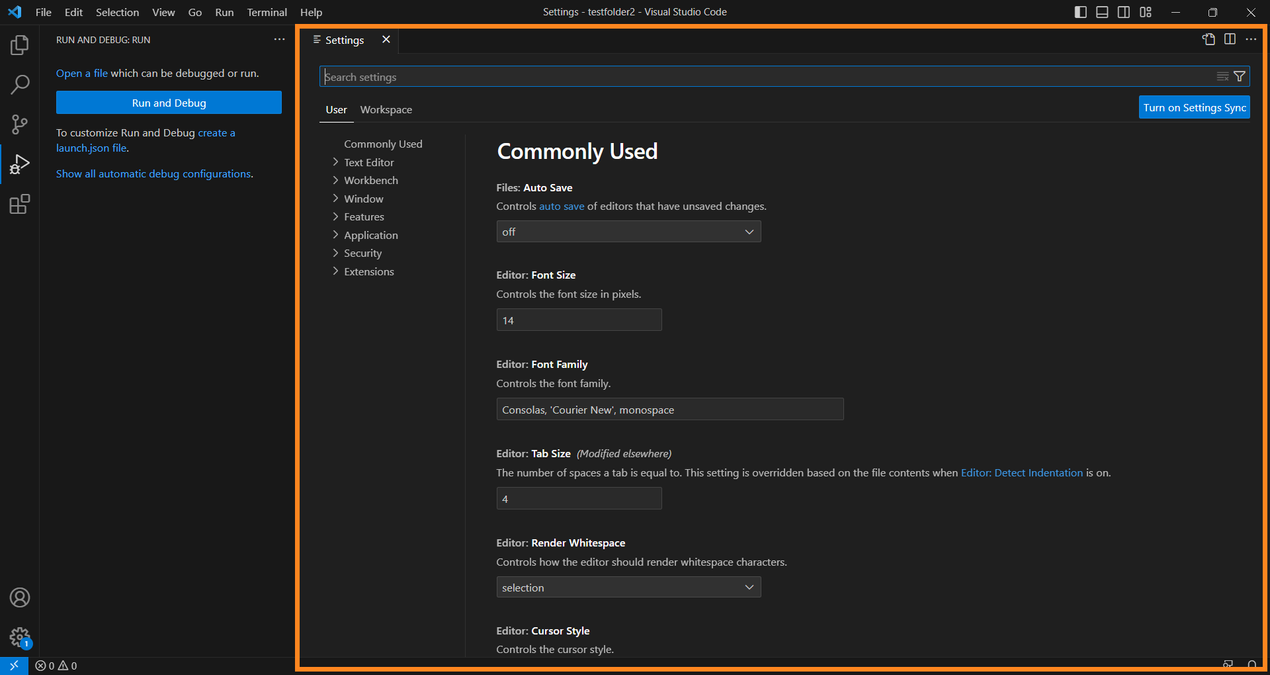
Each of the methods above will open VS Code’s main Settings view:
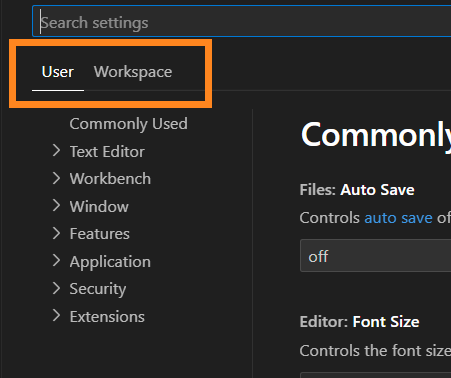
To access LVSCE settings, find the search bar in the Settings view:
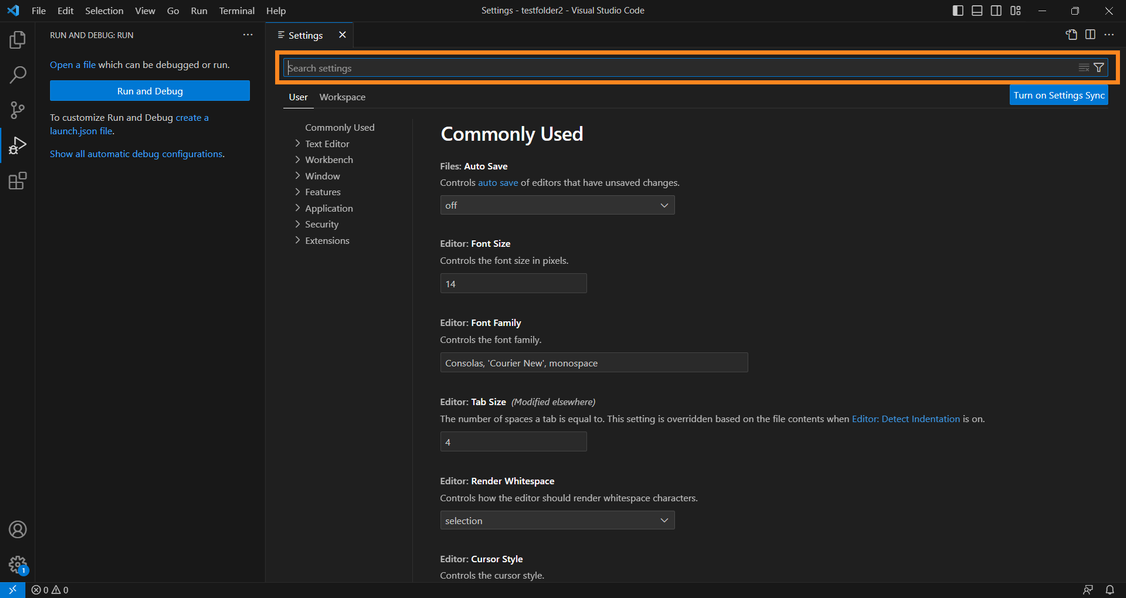
Type Lycia to filter the list. After that, VS Code will show LVSCE settings only:
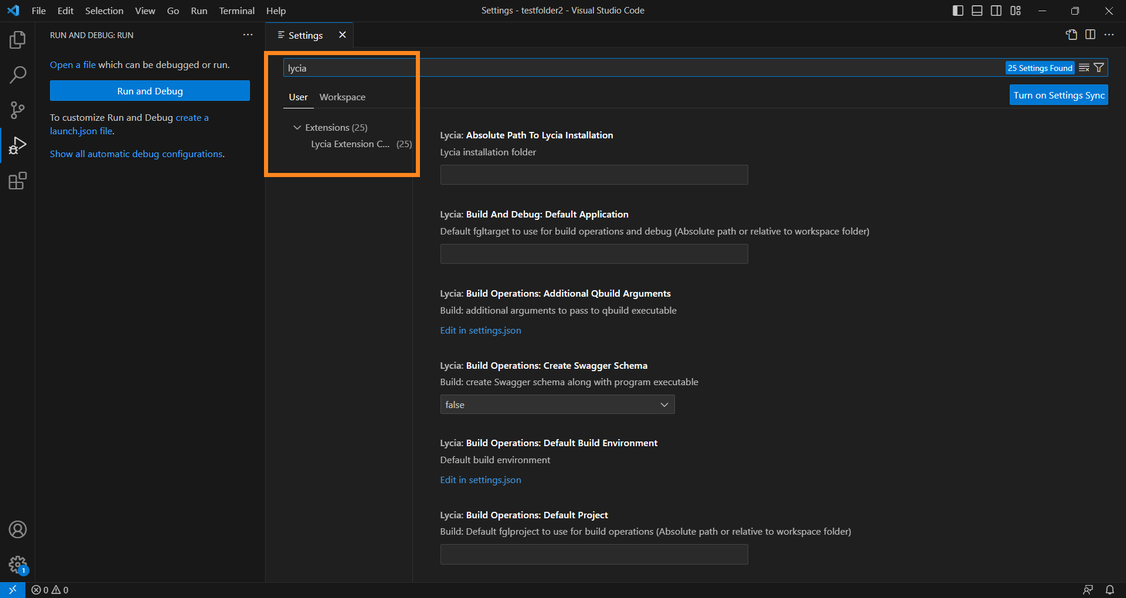
Now you can start configuring the Extension.
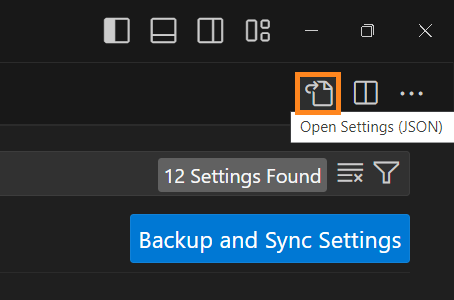
The file that opens for editing after you click the Edit in settings.json link or Open Settings (JSON) button depends on what settings scope you need to edit.
List of Extension Settings (UI)
The list below represents all the settings that are displayed in the Settings view. Note that the settings that are stored in the .json files have a link Edit in settings.json that opens the .json file.
| Setting | Purpose |
| Lycia: Absolute Path To Lycia Installation | The folder where your Lycia or its components are located. |
| Lycia: Build And Debug: Default Application | The default application to build, deploy and debug when using the console commands. Here you can add the path to .fgltarget file (absolute or relative to the Workspace folder). |
| Lycia: Build Operations: Additional Qbuild Arguments | Additional arguments for the qbuild executable. |
| Lycia: Build Operations: Build Error Threshold | Maximum number of errors before stopping the build. |
| Lycia: Build Operations: Create Swagger Schema | Select whether the extension should create the Swagger schema along with program executable. |
| Lycia: Build Operations: Default Build Environment |
Edit the settings of your build environment. Read about the environment variables here: Environment variables. |
| Lycia: Build Operations: Default Project | The default project to use for build operations. Here you can add the path to .fglproject file (absolute or relative to the Workspace folder). |
| Lycia: Build Operations: Suppress Warnings | Suppress the build / compile warnings. |
| Lycia: Create Build Log | Create a build log file. |
| Lycia: Debug: Build And Deploy Before Launch | Define whether to build and deploy application prior to starting run / debug. |
| Lycia: Debug: Debug Adapter Executable | Add your debug adapter here. |
| Lycia: Debug: Default Launch Args | Here you can add the arguments for run / debug. |
| Lycia: Debug: Default Launch Client Params |
Add URL parameters for run / debug. Read more about these parameters here: URL Parameters. |
| Lycia: Debug: Default Launch Environment |
Edit the settings of your run / debug environment. Read about the environment variables here: Environment variables. |
| Lycia: Debug: Default Server Instance |
Default server instance to substitute into debug configuration. Read more about the instances here: Listener.xml |
| Lycia: Debug: Default Webserver | Default web server name to substitute into debug configuration. |
| Lycia: Debug: Stop On Entry | With this set to true, the debugger will stop after the MAIN keyword. |
| Lycia: Enable Fgl Project Quick Access View | Enable 4GL Project Quick Access view (it shows a list of recently opened 4GL projects) |
| Lycia: Fgl Project Explorer: Notify About External File Operations | Show message if program file has been deleted or changed externally (not via 4GL Project Explorer) |
| Lycia: Fgl Project Explorer: Projects Folder | During new FGL project creation, the Extension will offer this folder as a project root. |
| Lycia: Fgl Project Explorer: Switch To Created Project |
With this on, the Extension will switch to new project after the project creation. At switching to new project, VS Code will open a new single-folder Workspace, named after the project. If you re-open your previous Workspace, that project will be available from it (provided that the project was placed within that existing Workspace). If you uncheck this setting, your new project will be displayed in your existing Workspace without any switching. To open the project in 4GL Project Explorer, find its main directory in the Workspace view, unfold it, and click the .fglproject file. |
| Lycia: Fgl Project Explorer View Kind |
4GL Project Explorer view kind. Options:
|
| Lycia: Form Builder: Application Url |
URL of the Form Builder application on Lycia Web Server. By default, locally-installed Lycia Web Server will use ports 9090 and 9443. In case you need to use non-default ports, you must specify them here. |
| Lycia: Form Builder: Full Screen Or Bordered Window | Select a default form displaying mode (full screen or bordered window). |
| Lycia: Form Builder: Instance Name | Select the instance to use for Form Builder while working with VS Code remotely. |
| Lycia: Form Builder: Login | Add the username for secure Lycia instance. |
| Lycia: Form Builder: Password | Add the password for secure Lycia instance. |
| Lycia: Form Builder: Trace Client Server Messages | Defines whether to print Lycia server responses in the Extension's console. |
| Lycia: Show Clean Global State Menu Item | Show the Clean Global State menu item in Extension's context menu. |
| Lycia: Show Set Custom Deployment Folder | Show the Set Custom Deployment Folder menu item in Extension's context menu. |
| Lycia: Use Active File | With this set to true, the Extension will execute commands on the file in currently open tab. |
| Lycia: Verbose | With this set to true, the Extension will print the commands in the log file (for example, debug adapter start command, debug adapter configuration, etc.) |
Video: Configuration of LVSCE
You can also learn about the configuration of LVSCE in the following video:
See next: LVSCE: How To