SSL Certificates
How to Configure the AppServer for Using SSL Certificates
How to Generate and Install Self-Signed SSL Certificates
How to Ignore SSL Security Warnings When Developing Your Applications
SSL is a cryptographic protocol that provides communications security over a computer network. It creates an encrypted connection between your web server and the web browser of your end users that allows secure transmission of any important personal data (like contact details and credit cards information).
SSL certificate is a data file that assigns a cryptographic key to the company’s details and binds together:
- the domain name, server name, or hostname;
- the company name and / or location.
When installed on a web server, SSL certificates activate the https protocol and allow secure connections between a browser and this web server.
There are two kinds of SSL certificates - self-signed SSL certificates and trusted CA-signed SSL certificates.
Both kinds offer encryption, but they are not equally accepted by browsers.
Self-signed SSL certificates are issued by the same company or person who uses them. With a self-signed SSL certificate, you vouch your own identity, but this vouching is not supported by the trusted certificate authorities.
Trusted CA-signed SSL certificates are issued by trusted certificate authorities that are authorized to issue these certificates. Browsers trust these certificate authorities because:
- they meet all the necessary requirements set for issuing SSL certificates;
- they validate the identities of persons and companies before issuing SSL certificates.
Attention: You must use trusted CA-signed SSL certificates for production.
For development needs, you may use self-signed SSL certificates or go without them.
 Click here to learn how browsers' address bars look depending on the SSL certificate.
Self-signed SSL certificate:

Trusted SSL certificate:

Trusted SSL certificate with extended validation:

How to Configure the AppServer for Using SSL Certificates
For production purposes, you must use trusted CA-signed SSL certificates.
To configure the AppServer for using certain SSL certificates, please follow these steps.
Step 1. Buy a trusted SSL certificate from an authorized certificate authority.
Step 2. Go to the AppServer configuration folder.
For example,
Step 3. Open the configuration file - jetty-ssl-context.xml.
Step 4. Change the name of the keystore file and its password.
<Connector port="9443" protocol="HTTP/1.1" SSLEnabled="true"
maxThreads="150" scheme="https" secure="true"
keystoreFile="./conf/keystore"
keystorePass="changeit"
clientAuth="false" sslProtocol="TLS" />
Step 5. Save the file.
By default, Lycia AppServer uses a self-defined SSL certificate for client connections.
Click here to see certificate details.
Subject: localhost
Issuer: localhost
Expires on: December 31, 2020
Current date: January 1, 2018
As Google Chrome does not recognize self-signed certificates, it will show you the SSL warning:
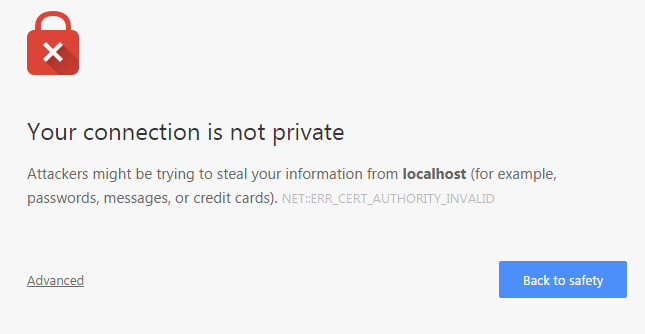
This is an expected behavior for development and testing purposes.
How to Generate and Install Self-Signed SSL Certificates
For development & testing purposes, you may use self-signed SSL certificates or run applications without any security certificates.
There are many free tools for creating self-signed SSL certificates - e.g., Java's keytool, Adobe Reader, Apple's Keychain, and OpenSSL.
Below we explain how self-signed SSL certificates are generated and installed by the example of Lycia self-signed certificates.
To generate a self-signed SSL certificate, you need:
- Windows 10 (x64 bit),
- Java Development Kit 8 (x64), and
- Lycia Development Suite (x64).
In our example, we use this Java configuration:
java -cp "C:\Program
Files\Querix\LyciaWebServer\jetty\lib\jetty-util9.3.7.v20160115.jar"
"C:\Program Files\Querix\Lycia\jetty\lib\jetty-util**********.jar"
C:\Program Files\Querix\LyciaWebServer\jetty\etc\jetty-sslcontext.xml
C:\Program Files\Querix\Lycia\jetty\etc\jetty-sslcontext.xml
Step 1. Generate a new Java keystore, an SSL certificate, and a private key to use with Jetty Web Server.
Set the keystore password and the key password (we use one password for both):
keytool -genkey -alias lycia_local -keyalg RSA -keystore lycia_local.jks -keysize 2048
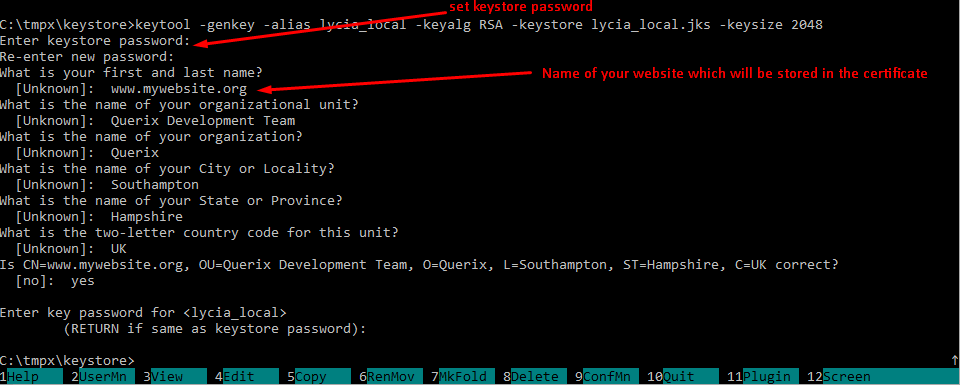
Step 2. Replace the default Jetty keystore with your new Java keystore in Jetty configurations.
Obfuscate the keystore password:
java -cp "C:\Program Files\Querix\LyciaWebServer\jetty\lib\jetty-util-9.3.7.v20160115.jar" org.eclipse.jetty.util.security.<password of your new keystore>
For example,
cd C:\Program Files\Querix\Lycia\jetty\lib
java -cp jetty-util-9.4.12.v20180830.jar org.eclipse.jetty.util.security.Password 123
The obtained result is:
OBF:18xp18xr18xt
MD5:202cb962ac59075b964b07152d234b70
Edit jetty-ssl-context.xml – the Jetty configuration file used in Lycia to configure SSL connect for Jetty Web Server.
By default, it is located here:
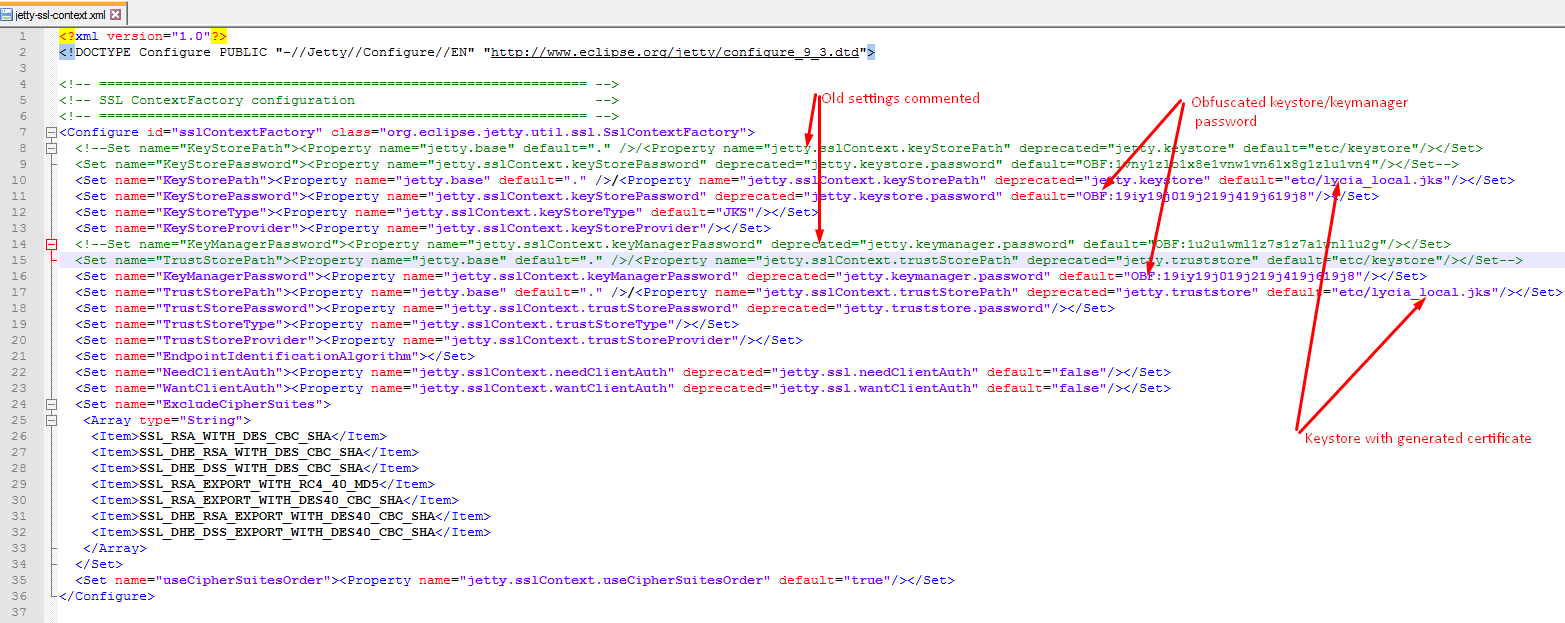
Step 3. Export the SSL certificate from the keystore.
To export the SSL certificate, execute this command:
keytool -export -alias lycia_local -file lycia_local.crt -keystore lycia_local.jks

Step 4. Import the SSL certificate to the certificate store on your client station.
On Windows
Via control panel
- In the control panel, start the search for 'cert'.
- Select Manage computer sertificates.
-
Add your SSL certificate to Trusted Root Certification Authorities:


Via command line
certutil -addstore root lycia_local.crt

On Linux
certutil -addstore root lycia_local.crt
How to ignore SSL security warnings when developing your applications
When you develop your applications, you usually test them without any security certificates.
--ignore-certificate-errors is a LyciaDesktop parameter that makes LyciaDesktop ignore error messages related to invalid SSL certificates.
When running applications via LyciaDesktop for production needs, you can set --ignore-certificate-errors in two ways:
- when launching LyciaDesktop from command line or
- when launching LyciaDesktop by its icon.
When launching LyciaDesktop from the command line, you must launch it with --ignore-certificate-errors:

When launching LyciaDesktop by its icon, you must set --ignore-certificate-errors in its properties:
|
|
|

