Querix Package Manager
With Querix Package Manager (QPM), you can install, update and uninstall Lycia as a whole or its components selectively.
In this chapter, you will learn:
- what Lycia components are included in QPM
- about QPM structure
- how to install Lycia with QPM
- how to update Lycia with QPM
- how to remove Lycia with QPM
If your Lycia was installed using the old (pre-QPM) installer, please contact the Querix support team on the Querix website, via our service desk, or by e-mail (support@querix.com) for update assistance.
Lycia Components Included in QPM
With Querix Package Manager, you can install these Lycia components:
Runtime is an execution environment for Lycia applications.
4GL compiler is implemented in Lycia for working with 4GL code. Lycia compiler Digitally Transforms I4GL applications.
All 4GL programs compiled by Lycia automatically become web services with a REST API. It is up to the system manager how much of these services should be available to the outside. Also, all such programs can be hot-deployed, eliminating the need to ask people to log off before any update. They are containerized and can float around the cloud with no need to inform the clients / end users. Automatic / Manual Load Balancing is also easy to do using standard tools.
The front end can be enhanced using CSS as well as other extensions in the language.
All programs are accessibility-enabled and run through any standard modern browser.
JSON, XML, Java integration, messaging, and Streaming are also part of the Lycia 4GL language. Other languages can easily interact with Lycia programs.
All programs are compiled to LLVM and use sophisticated optimization technique to achieve exceptional performance.
Application server is a server software that handles business logic of 4GL applications.
Web server is a server software that serves Lycia web client and performs communication with 4gl applications (currently, Jetty web server).
LyciaDesktop is a Lycia desktop client (OS Windows only).
MinGW is a toolset for compiling, assembling, and linking C code for native OS Windows applications.
Lycia Theme Designer is a tool for customizing the look and feel of 4GL applications (OS Windows only).
KMS Server is a server software that provides licensing management in virtual environments. The KMS server can be run only on a physical machine.
Lycia LowCode is a library to speed up your 4GL development by reducing the amount of coding work, automating usual tasks, extending your 4GL program functionality, and improving user experience for the end user.
QPM offers three setup presets which allow you to install the aforementioned components in one of these combinations:
- Development system – with this preset, you can install all the Lycia components to get a complete development toolkit and use all Lycia development potential;
- Runtime server – with this preset, you install the components necessary for putting your 4GL applications into production;
- KMS Server – with this preset, you install the Runtime and the KMS Server components.
-
Custom – with this preset, choose the specific Lycia components to be installed.
When you install one Lycia component, you get access only to the functionality provided by this component.
Not all Lycia components can be installed separately. For example, LyciaDesktop is an independent component that can be installed on its own, but Lycia Theme Designer is a dependent component that requires LyciaStudio.
Custom preset is also used to uninstall Lycia.
Note: To use Lycia VS Code Extension, you only need the following components:
- Runtime
- 4GL Compiler
- Application server
- Web server
Attention: The HTTP service uses the port 80.
QPM Structure
QPM exists in two forms – as a GUI and as a command line tool.
QPM GUI is available only for Windows, and QPM command line tool is available both for Windows and for Linux.
QPM GUI
QPM GUI includes one main and one Preferences window where you can work with all Lycia components:
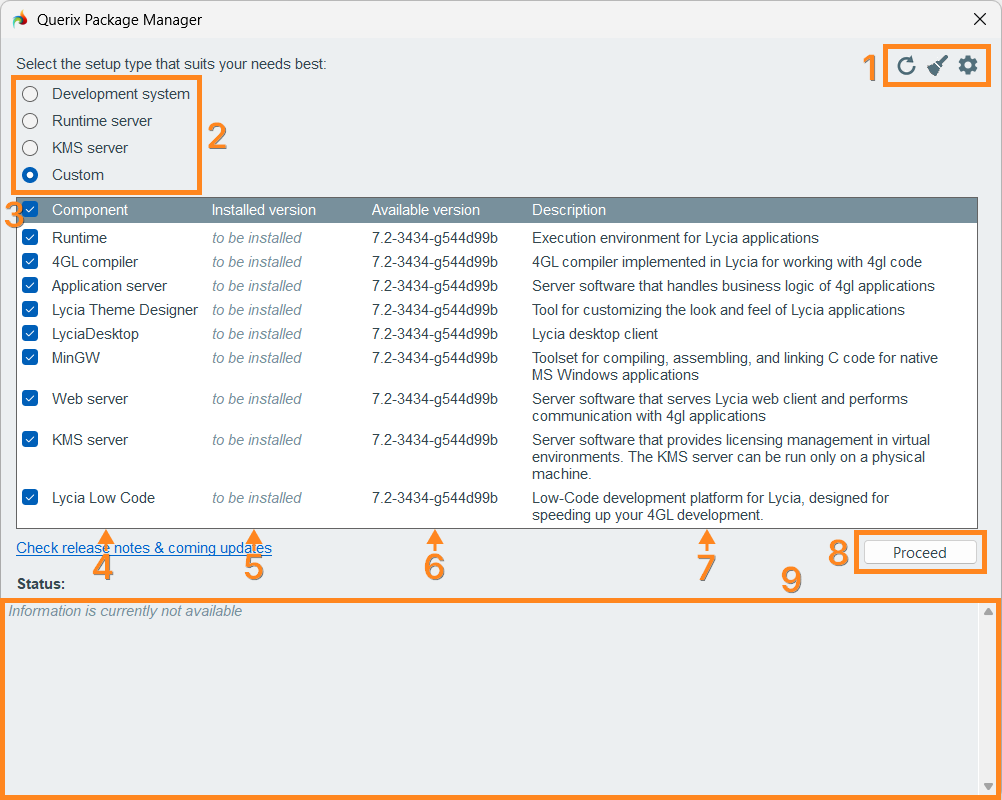
(1) In the upper-right corner of the QPM main window, you have three management buttons:
-
 the Reset button resets Lycia components to their initial state
 -
 the Clean button cleans up redundant and orphaned files
 -
 the Preferences button opens the Preferences window
In the Preferences window, you can specify Lycia installation path and the repository credentials:
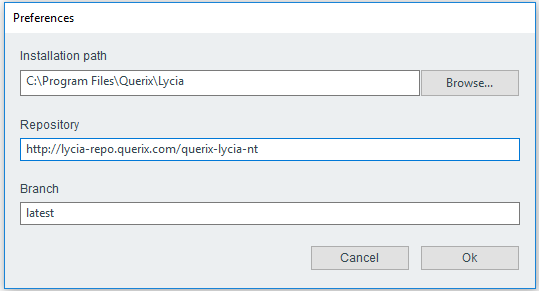
By default,
-
Lycia components available for installation are taken from this repository
http://lycia-repo.querix.com/querix-lycia-nt
-
Lycia is installed to
C:\Program Files\Querix\Lycia
You can change the installation path by direct typing or browsing:

The repository and its branch are changed by direct typing.
(2) In the top left part of the QPM main window, you can choose one of the available Lycia setup presets – Development system, Runtime server, KMS server, and Custom (are described here).
(3) In the leftmost column, check / uncheck the components you want to install, update, or delete.
You can check the components one-by-one or select all of them by checking the checkbox in the table header.
To uninstall Lycia, you must deselect (uncheck) all the installed components.
(4) In the Component column, all the available Lycia components are listed.
(5) In the Installed version column, there will be the following statuses:
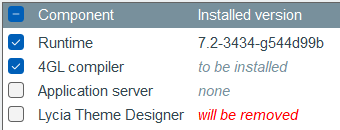
- the current version of the selected component if it is already installed;
- none if the component is not installed;
- to be installed if the component is selected for installation (it is checked);
- will be removed if the component will be deleted (it is unchecked):
(6) In the Available version column, you see the latest version to which the selected component can possibly be updated.
(7) In the Description column, you see some basic information about the component based on which you can choose whether to install / update / delete it or not.
(8) With the Proceed button, you launch the installation / update / uninstallation procedure.
(9) In the Status field, you see the current status and the progress of your installation / update as well as messages and warnings.
QPM Command Line Tool
QPM command line tool provides the same functionality as QPM GUI.
To install Lycia with default parameters, you must perform this command:
You can learn all the available commands (options, presets, and components) in the QPM help:
To be able to view the QPM help, you must run the command line with the administrative rights on Windows or as a superuser on Linux.
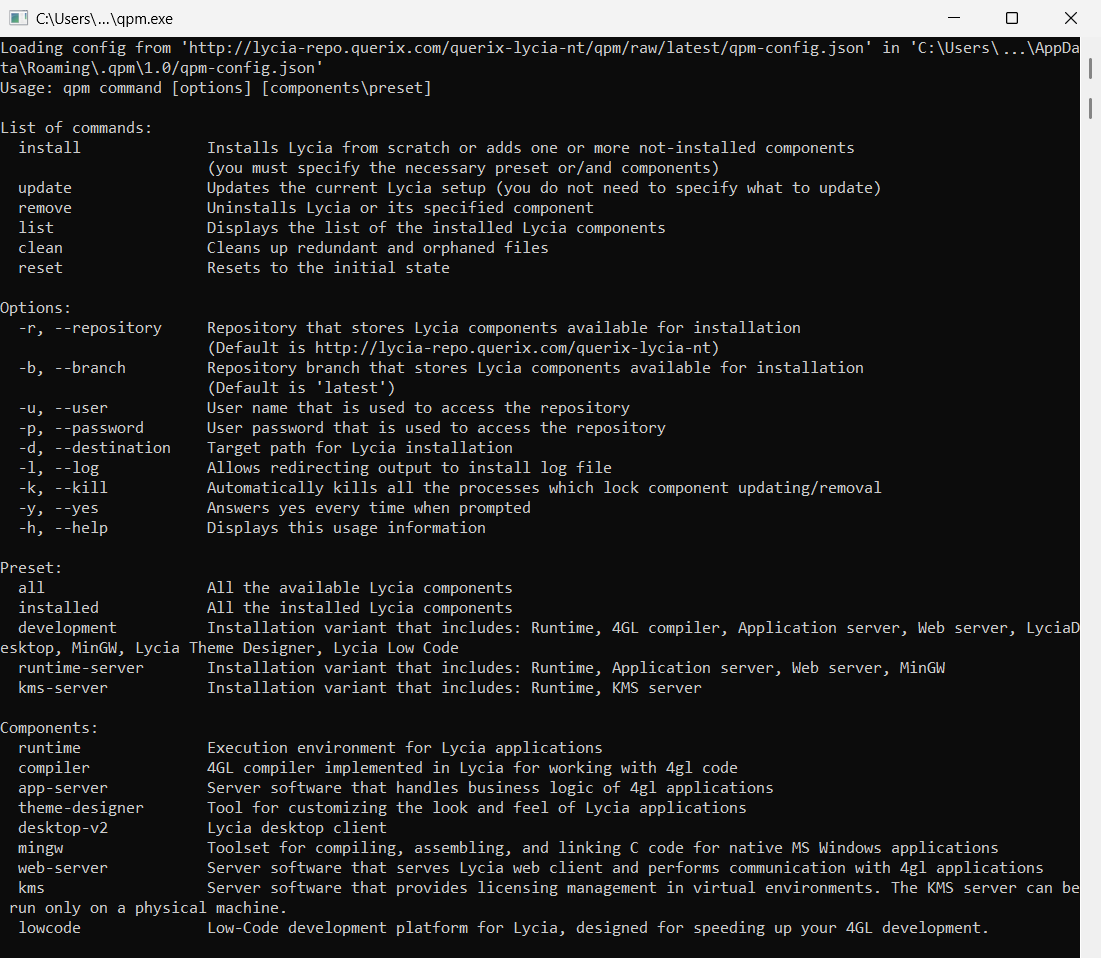
Here are the commands supported by QPM command line tool:
-
install
installs Lycia from scratch or adds one or more not-installed components
(you must specify the necessary preset and / or components)
update
updates the current Lycia setup (you do not need to specify what to update)
remove
uninstalls Lycia or its specified components
list
displays the list of the installed Lycia components
clean
cleans up redundant and orphaned files
-
-r, --repository
repository that stores Lycia components available for installation
-b, --branch
repository branch that stores Lycia components available for installation
-o, --owner
user that serves as a Lycia owner
-g, --group
group that serves as a Lycia owner
-u, --user
user name that is used to access the repository
-p, --password
user password that is used to access the repository
-d, --destination
target path for Lycia installation
-l, --log
allows redirecting output to install log file
-k, --kill
automatically kills any process that locks component's installation / update / removal
-y, --yes
answers 'yes' every time when prompted
-h, --help
displays this usage information
-
Presets:
all
to install all the available Lycia components
installed
to update all the installed Lycia components
preset that includes: Runtime, 4GL compiler, Application server, Web server, LyciaDesktop, Lycia Theme Designer, Lycia LowCode
preset that includes: Runtime, Application server, Web server, MinGW
kms-server
preset that includes: KMS server and Runtime -
Components:
runtime
execution environment for applications
compiler
4GL compiler implemented in Lycia for working with 4GL code
app-server
server software that handles business logic of 4GL applications
web-server
server software that serves Lycia web client and performs communication with 4gl applications
desktop-v2
 Lycia desktop client
mingw
toolset for compiling, assembling, and linking C code for native MS Windows applicationstheme-designer
tool for customizing the look and feel of Lycia applicationskms
Server software that provides licensing management in virtual environments lowcode Low-Code development platform for Lycia, designed for speeding up your 4GL development
Attention: To specify Lycia components for installation / update, tick the boxes of all the components you want to keep.
If the installed component is unchecked, QPM will delete it.
By default, QPM command line tool installs Lycia to these folders: