GridPanel
GridPanel places the elements in grid cells.

Grid lines are only visible during panel manipulations in Lycia Form Designer, and are not visible at runtime. You can define the number of rows, columns, and their sizes.
Each element must occupy at least one grid cell.
Two elements cannot occupy the same grid cell.
Form XML code:
GridPanel XML code:
<form.rootContainer>
<GridPanel identifier="rootContainer" visible="true">
<GridPanel.gridColumnDefinitions>
<GridColumnDefinition gridLengthValue=""/>
</GridPanel.gridColumnDefinitions>
<GridPanel.gridRowDefinitions>
<GridRowDefinition gridLengthValue=""/>
</GridPanel.gridRowDefinitions>
</GridPanel>
</form.rootContainer>
Most commonly used form properties:
preferredSize (required)
Most commonly used properties for child elements:
Most commonly used theme properties:
CSS element filter:
Inheritance diagram:
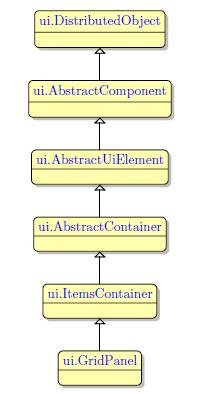
Associated ui methods:
SetGridColumnDenitions
GetGridColumnDenitions
SetGridRowDenitions
GetGridRowDefinitions
SetGridLength
GetGridLength
SetGridLengthType
GetGridLengthType
SetGridLengthValue
GetGridLengthValue
SetGridMaxLength
GetGridMaxLength
SetGridMinLength
GetGridMinLength
Influence and behavior:
To add a GridPanel to your form, you
Step 1. Choose a GridPanel from the form containers in Palette.
Step 2. Place it inside the Root container.

Initially, GridPanel has only one cell. You can add rows and columns by right-clicking an element within the numbering line and selecting the required option from the context menu.

- Cut: cuts the column/row.
- Copy: copies the column/row .
-
Paste: pastes the column/row.
- Insert Column Before/Insert Row Above: inserts a new column or row before the selected one.
-
Insert Column After/Insert Row Below: inserts a new column or row before the selected one.
- Delete: deletes the currently selected column or row with its contents.
When you drag your widget into the Design Area without releasing the mouse button, the Form Builder displays the availability:
- green colour: available locations (the locations you can place that certain widget into);
- intense green colour: the location you hold a widget over, ready to contain that widget;
- red colour: unavailable locations.

ToolbarButton, though, cannot be placed inside a GridPanel, as it is a child item for the Toolbar widget:
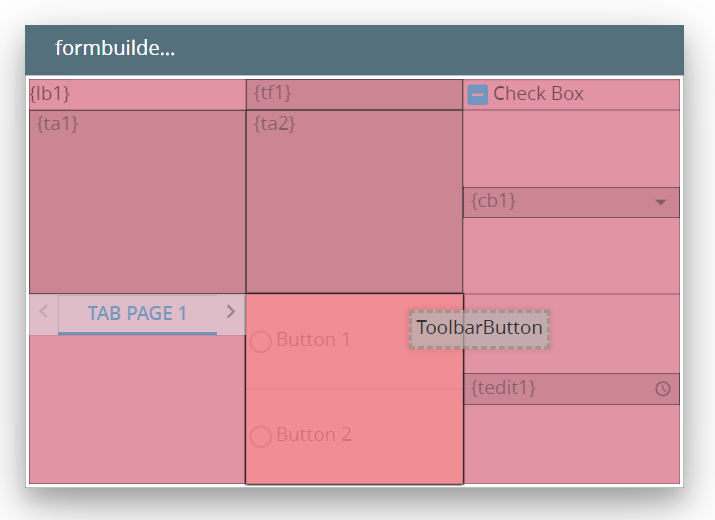
When reordering rows and columns in a GridPanel, you must remember these rules:
- You cannot move row or column beyond the borders of the Design Area.
- When you move a column/row, its properties are retained. When you move a column/row, the content of this column/row and the properties of the content are retained as well.
 Related articles