Browser
Browser embeds a fully functional browser into the form.

Allows viewing web pages, files, images and folders on your computer. The file browser is also useful to merge 4GL applications with Web-based applications.
Most commonly used form properties
Inheritance diagram
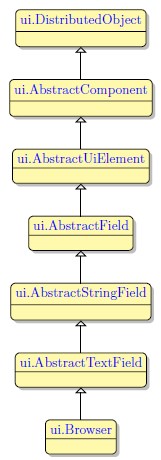
Form XML code
<Browser text="www.querix.com" visible="true" identifier="br1" gridItemLocation="0,0,1,1"/>
Influence and behavior
To add a Browser to your form, drag-and-drop the Browser widget into the Root Container.
The file browser renders the source specified in its field value.
The file browser connects to the source specified as the browser field value. This can be an HTML file, an image, any other files located on the system where the application is run which the browser supports.
By default, the Browser widget does not allow displaying web pages, running scripts, and submitting forms, as this can lead to data loss.
To disable these security restrictions and be able to display web pages, run scripts, etc., do the following:
Step 1. Apply the class name trusted to your Browser:
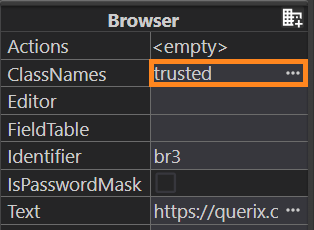
<Browser text="www.querix.com" visible="true" identifier="br1" gridItemLocation="0,0,1,1" classNames="trusted"/>
Step 2. Add the following tags within the <content_security_policy> tag:
<frame-src>*</frame-src>
<X-Frame-Options>sameorigin</X-Frame-Options>
This is important because some web-sites (URLs) can not be displayed to a Browser widget out of the box.
x-frame-options HTTP response header can prevent a web-site from being displayed in <iframe>. If a web-site cannot be displayed within the <iframe>, it cannot be displayed in the Browser widget.
You can learn the current directive for x-frame-options for your needed website with the help of the browser's developer tools.
To apply classic Lycia Browser (.per) at runtime, follow this syntax when specifying the widget:
field_tag = database.field_name
config = "url or file system path",
widget = "browser"
Here is an example of the code for the field tagged f003 which we want to become a browser:
DATABASE formonly
SCREEN {
[f003 ]
[f003 ]
[f003 ]
[f003 ]
[f003 ]
[f003 ]
[f003 ]
[f003 ]
[f003 ]
[f003 ]
[f003 ]
[f003 ]
[f003 ]
[f003 ]
[f003 ]
[f003 ]
}
ATTRIBUTES
F003 = formonly.mybrs, config = "www.querix.com", widget = "browser";
The document or the HTML page will open directly in the field specified as a browser. So, for the sake of comfort and functionality, it is advisable that you specify the browser field as a multi-segment one.
Such field specification in combination with the ATTRIBUTES given above will result in the following application appearance:
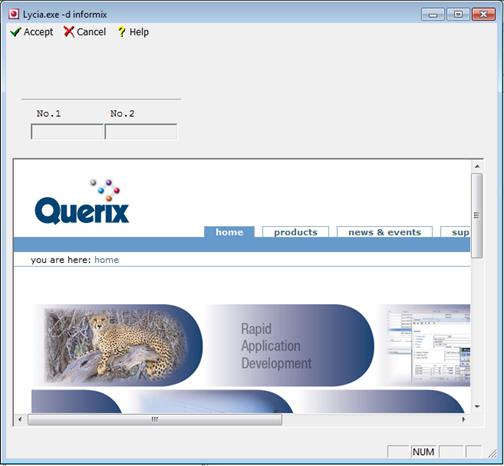
The URL is taken from the config attribute value, therefore, the value can be changed dynamically at any time by means of statements such as DISPLAY... TO <field>. Thus here is how you can override the URL specified in the form file, if you specify this line right after the form file is displayed, or change it at some point of the program execution:
You can also specify the config property as c:/ - this will open the root directory of the C drive; or c:’/Images/my_im.jpg - this will display a picture named my_im, stored in the folder Images on the C drive.
 Related articles