PlaceHolder
Form and theme XML code and CSS element selector
Most commonly used form and theme properties
|
|
PlaceHolder is used to open a new window to a form. |

Theme element filter XML code:
<ElementFilter ElementName="PlaceHolder">
...
</ElementFilter>
CSS element selector code:
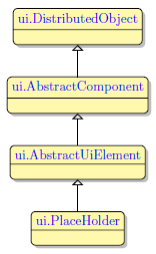
Most commonly used form properties:
Most commonly used theme properties:
Associated ui methods:
Create
ForName
Step 1. Decide on a place in your form for the PlaceHolder widget. Mind that the form must have at least one container (a Root Container) to be able to contain widgets.
Step 2. In the Form Builder's Palette, find the PlaceHolder widget.
Step 3. Select the PlaceHolder, then drag-and-drop it into the defined place in your form.
After that, the PlaceHolder will be added to your form. You will also see it appear in the Form Structure view.
To open a new window to a form, you add a PlaceHolder to this form and open the window to it via OPEN WINDOW ... INTO:
OPEN WINDOW window_name INTO "placeholder_id" WITH FORM "form_name"
For example,
OPEN WINDOW w2 INTO "ph1" WITH FORM "placeholder_01_open_into_phid_01_single_into"
 in Lycia Form Builder
<PlaceHolder visible="true" identifier="ph1" gridItemLocation="0,1,1,1"/>

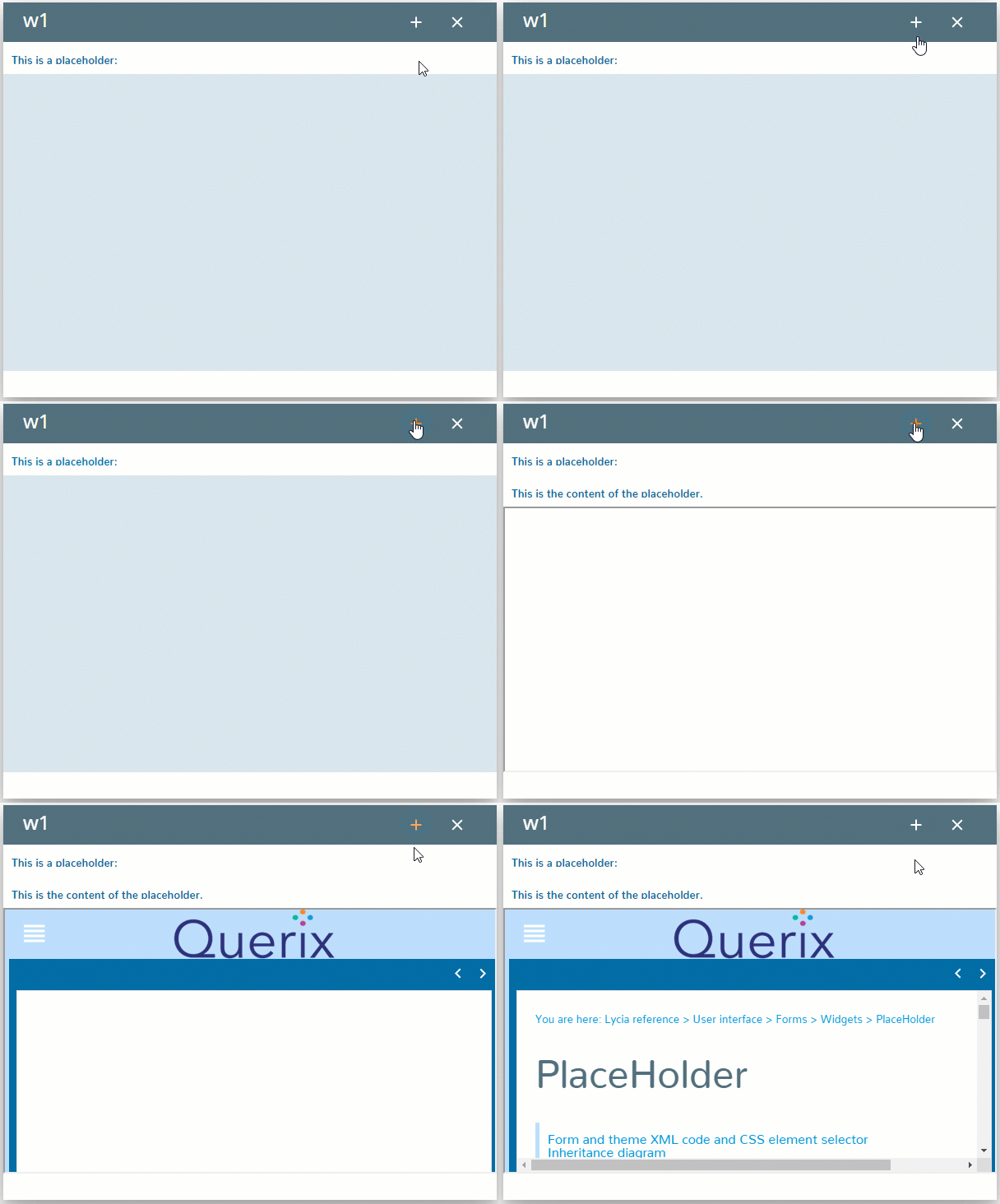
Types of windows that can be opened to a placeholder,
Both window types – flat and bordered – are opened to the specified placeholder, but the toolbar, menubar, and status bar of the child are displayed to the parent.
You can specify the placeholder where the new widow will open in three ways:
-
by the OPEN WINDOW statement (as above):
OPEN WINDOW window_name INTO "placeholder_id" WITH FORM "form_name"
-
in master and user themes – by the Target property (see the example programs, placeholder_02_qxtheme_01_single and placeholder_02_qxtheme_02_multi):
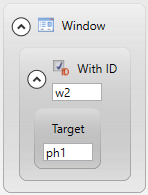
-
CALL w2.OpenWithForm("My window", "ph_into", "ph1", "border")
If you specify the target placeholder in both 4gl code and .qxtheme file, the theme file will be of higher precedence and the new window will open in the palceholder specified in the master/user theme.
Click here to see the example.
Example program – placeholder_05_two_phs
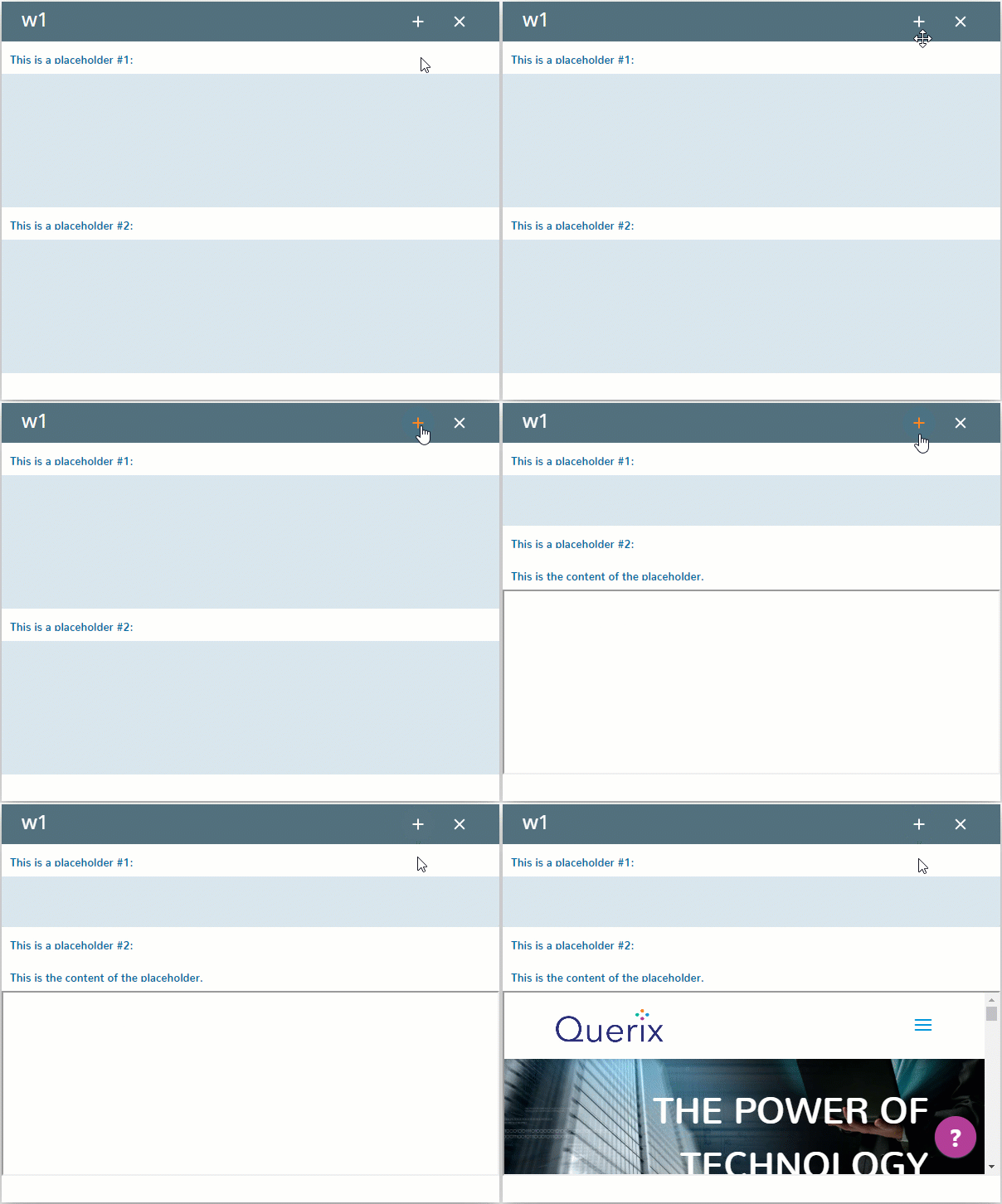
If several opened windows (including the current one) have placeholders with the same id, the new window will open to the current window:
Click here to see the example.
Example program – placeholder_03_one_phid
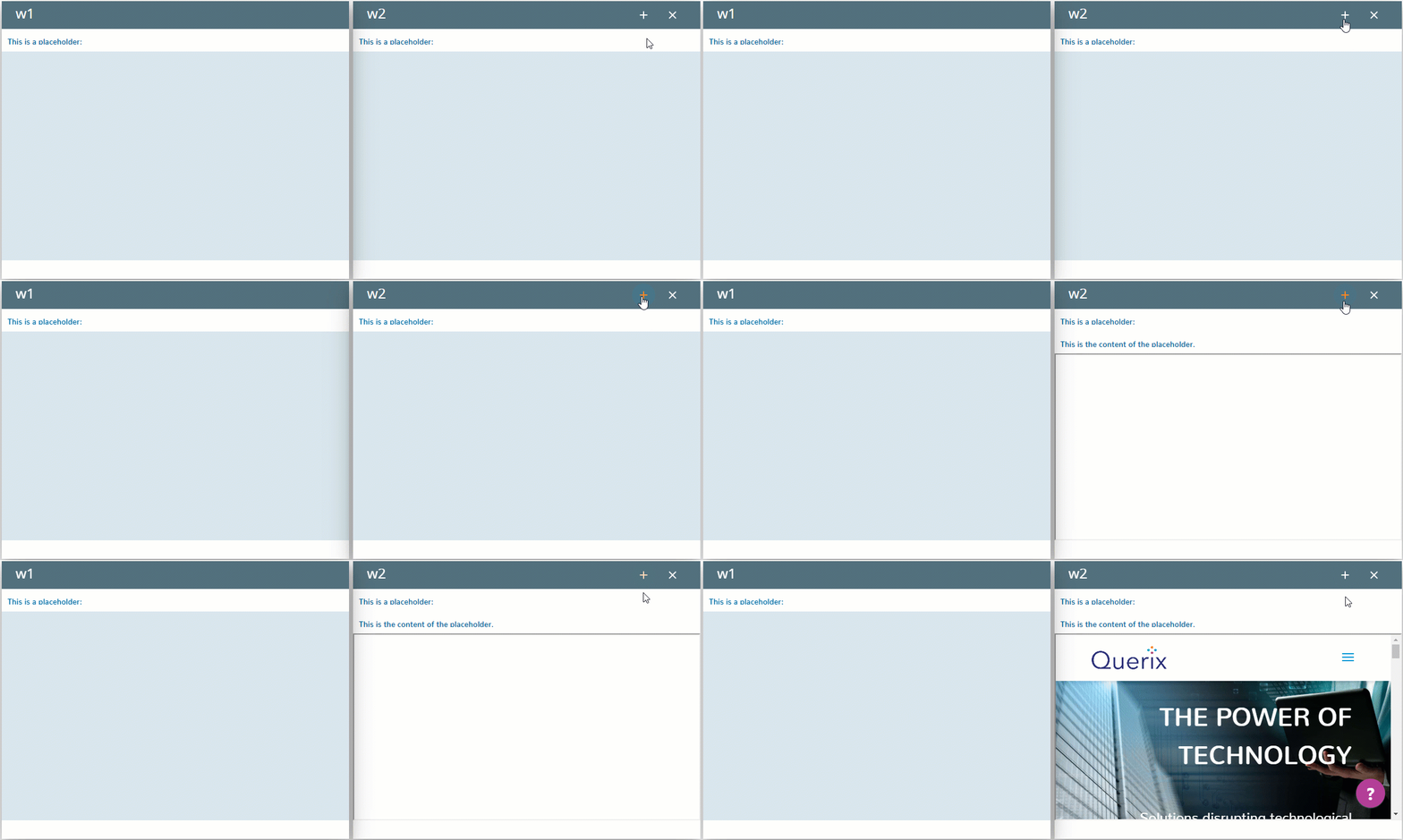
If some windows but not the current one have placeholders with the same id, then the new window will be open to the latest open window (before the current).
You can use the window id to distinguish between many placeholders with the same id:
OPEN WINDOW w3 INTO "w1.ph" WITH FORM "ph_04_wid_phid_01_into"
Click here to see the example.
Example program – placeholder_04_wid_phid
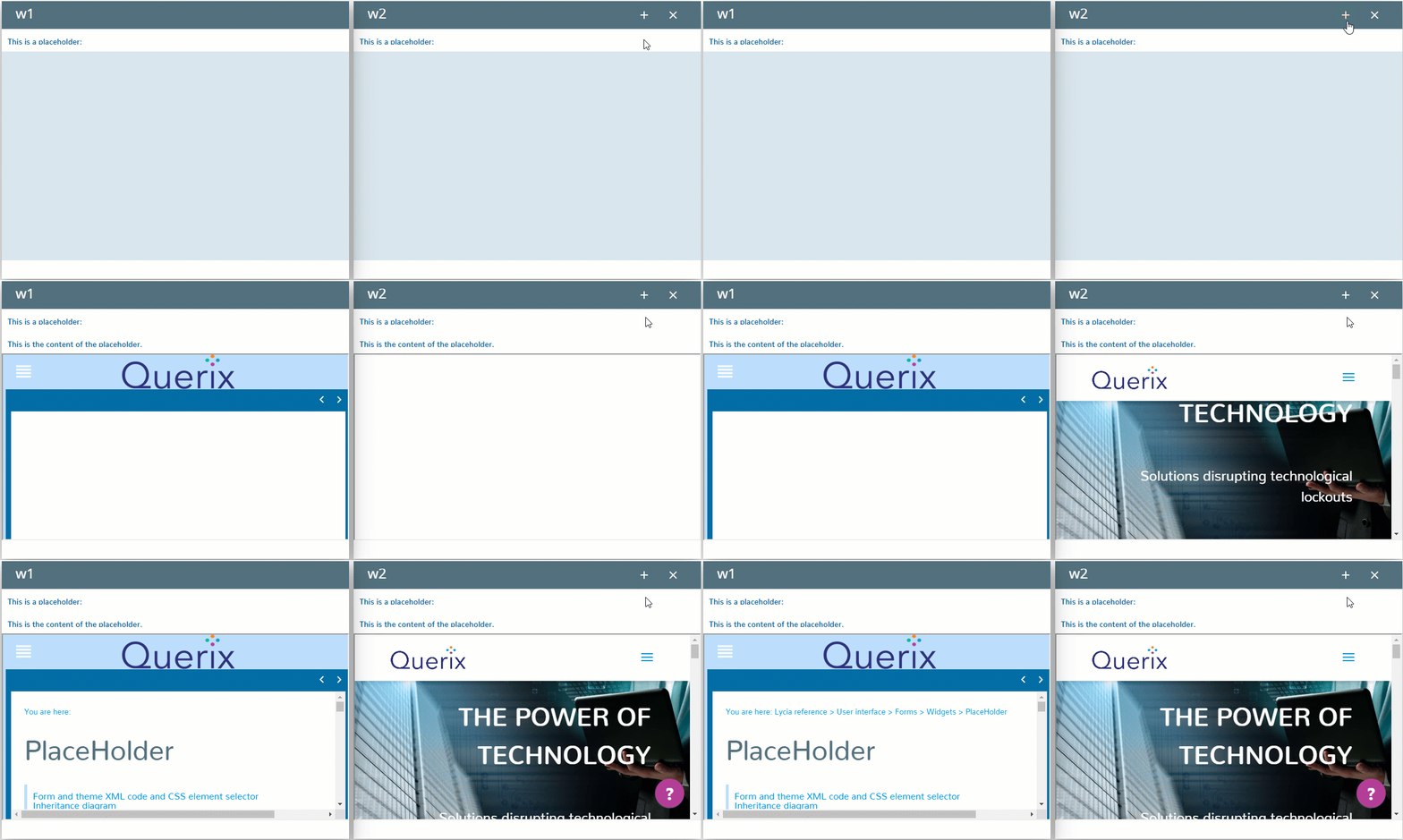
Placeholders can be used for easier guification of 4gl applications.
If the source code of the modernized program contain the statements OPEN WINDOW ... AT or DISPLAY ... AT, 4gl developer can simply create a new form and add a PlaceHolder to it with the identifier AT_n1_n2:
-
With OPEN WINDOW ... AT, the new window will be opened to the specified placeholder
OPEN WINDOW w2 AT 2, 2 WITH FORM "placeholder_06_at_01_open_window_into"
in Lycia Form Builder
<PlaceHolder visible="true" identifier="AT_2_2" gridItemLocation="0,1,1,1"/>

-
With DISPLAY ... AT, a label will be created at runtime to which the text will be displayed
DISPLAY "This is the text displayed to the placeholder." AT 2, 2
in Lycia Form Builder
<PlaceHolder visible="true" identifier="AT_2_2" gridItemLocation="0,1,1,1"/>
You can change placeholder's properties in the Form Builder. However, we recommend applying appearance properties via user themes and css.
To apply a property to a placeholder, set its value in the user theme, directly or using filters.
In all the examples above, the placeholder's background was set in the master theme:
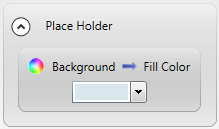
<ElementFilter ElementName="PlaceHolder">
<StyleSheet>
<DoStyleAction>
<SetProperty>
<PropertyPath>
<PropertyName>Background</PropertyName>
<PropertyName>FillColor</PropertyName>
</PropertyPath>
<PropertyValue type="CustomizedColor" RedColor="217" GreenColor="230" BlueColor="236" Alpha="255" />
</SetProperty>
</DoStyleAction>
</StyleSheet>
</ElementFilter>