margin
margin specifies the spacing outside the form element's border.
Includes 4 sub-properties – Left, Top, Right, Bottom – which can be set individually, together, or in different combinations.
Margins are transparent and do not have any background color.
 in Lycia Theme Designer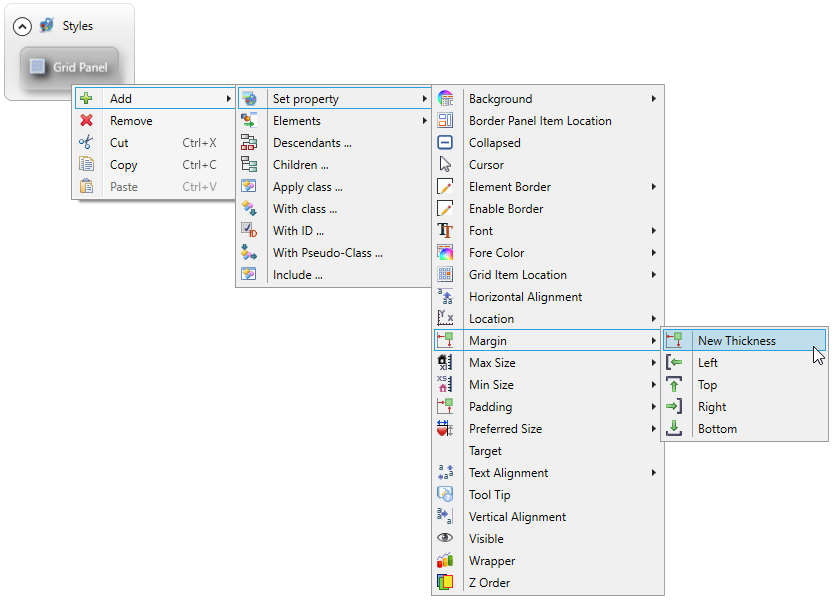

Form XML code:
Theme property filter XML code:
<ElementFilter ElementName="...">
...
<SetProperty>
<PropertyPath>
<PropertyName>Margin</PropertyName>
</PropertyPath>
<PropertyValue type="Thickness" Left="10" Top="10" Right="10" Bottom="10" />
</SetProperty>
...
</ElementFilter>
Possible values:
any integer
Default value:
0 for all dimensions
Inheritance diagram:
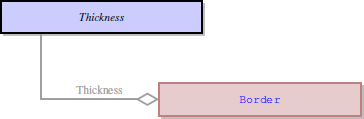
Associated containers, widgets and theme elements:
Associated ui methods:
setMargin() ↓
getMargin() ↓
Influence and behavior:
Both margin and padding specify the spacing of form elements.
Difference between them is this:
- margin specifies the spacing outside the border of a form element that is the spacing between the form element's border and its surrounding, and
- padding specifies the spacing inside the border of a form element that is the spacing between the form element' border and its content.
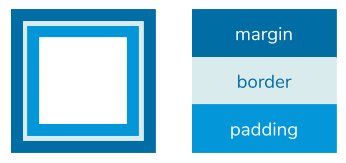
Try the example program, margin_vs_padding, to compare the runtime appearance of a form element with margin or padding:
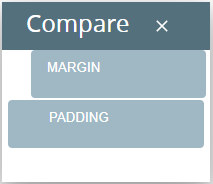
margin is a complex property and includes 4 sub-properties:
- Left sets the spacing to the left of the element border
- Top sets the spacing on the top of the element border
- Right sets the spacing to the right of the element border
- Bottom sets the spacing below the element border
For example, this value
<Label ... margin="10,10,10,10"/>
means that the label's margin is the same in all directions and is equal to 10 px (as with labels on the right):
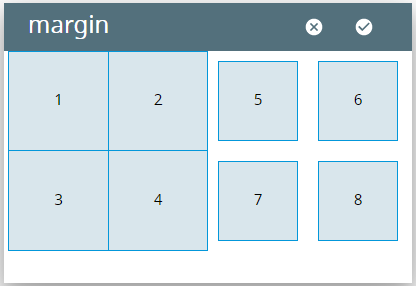
The labels on the left have the default margin values, margin = "0, 0, 0, 0".
In Lycia Theme Designer, margin can be set
-
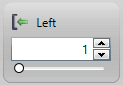
by direct typing, by moving the slider, or via the up and down arrows in the Styles view:
- in the XML code (recommended only for experienced users)
If you set margin in Lycia Theme Designer without any filters, it is applied to all the elements in the form:
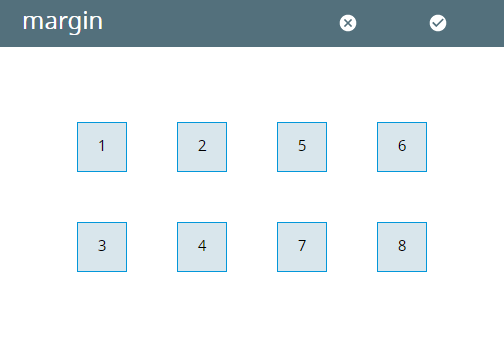
At runtime, you can set margin by means of the corresponding ui method – setMargin().
As margin is a complex property, setMargin() requires several preparation steps:
-
Define the objects of ui.<Widget> and ui.Thickness types:
DEFINE by ui.Button
DEFINE marg ui.Thickness
-
Bind your ui.<Widget> variable with the corresponding widget in your form:
LET bt = ui.Button.ForName("bt1")
-
Set values for Left, Right, Top, and Bottom (all of them) for your ui.Thickness variable via the LET statement:
LET marg.Left = 10
LET marg.Right = 10
LET marg.Top = 10
LET marg.Bottom = 10
-
Specify the margin of your widget by passing your ui.Thickness variable as the parameter for the setMargin() method:
CALL bt.SetMargin(marg)
Try the example program, margin_ui, to learn how it works at runtime.
The corresponding getter – getMargin() – is used to retrieve margins of form elements:
DISPLAY widget_var.getMargin()