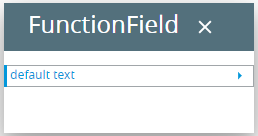
FunctionField
FunctionField is a field that has a button displayed to its right. The button should be used to trigger an event.
The button has a default image ( )
that can be changed by the Image attribute. A classic example would be a field where the e-mail
address of a contact is stored. The button could be used to start the
e-mail client to send an e-mail to this e-mail address. Another example
would be a field to keep the website of a company. When the user clicks
the button, the browser window opens with the corresponding URL.
)
that can be changed by the Image attribute. A classic example would be a field where the e-mail
address of a contact is stored. The button could be used to start the
e-mail client to send an e-mail to this e-mail address. Another example
would be a field to keep the website of a company. When the user clicks
the button, the browser window opens with the corresponding URL.
Form XML code:
<FunctionField visible="true" identifier="f3" gridItemLocation="0,0,1,1">
<FunctionField.actions/>
<FunctionField.onInvoke>
<ActionEventHandler type="actioneventhandler" actionName="act1"/>
</FunctionField.onInvoke>
</FunctionField>
Most commonly used form properties:
image
Inheritance diagram:
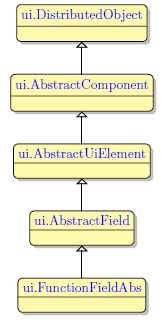
Associated functions:
Influence and behavior:
To add a FunctionField to your form, drag-and-drop the Button widget from the Palette to the Design Area. Mind that the form must have at least one container (a Root Container) to be able to contain widgets.
Here is an example how to change the font color of a function field via the user theme:
lycia theme designer:
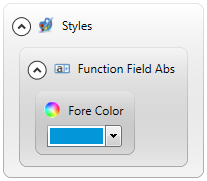
theme xml code:
<?xml version="1.0" encoding="utf-8"?>
<StyleSheet xmlns="http://querix.com">
<ElementFilter ElementName="FunctionFieldAbs">
<StyleSheet>
<DoStyleAction>
<SetProperty>
<PropertyPath>
<PropertyName>ForeColor</PropertyName>
</PropertyPath>
<PropertyValue type="CustomizedColor" RedColor="3" GreenColor="151" BlueColor="218" Alpha="255" />
</SetProperty>
</DoStyleAction>
</StyleSheet>
</ElementFilter>
</StyleSheet>
runtime appearance: