Spinner
Spinner allows entering numeric values both manually or using the spinner arrow buttons. The field includes a spinner with a pre-defined step which allows the user to set the necessary data by clicking up and down keys.
Spinner inserted in a GridPanel as seen in Lycia Form Builder:
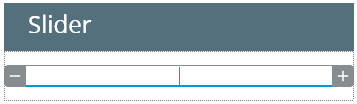
Form XML code:
Theme element filter XML code:
<ElementFilter ElementName="Spinner">
CSS element selector code:
Associated 4gl syntax:
INPUT ↓
Most commonly used form properties:
defaultValue
Most commonly used theme properties:
Size
Inheritance diagram:
|
|
|


Associated ui methods:
SetReadOnly
GetReadOnly
SetStep
GetStep
Influence and behavior:
To add a Spinner to your form, drag-and-drop the Spinner widget to a location of your choice in the Design Area. Note that the form must have a Root Container to contain all other widgets.
You can change appearance properties of a Spinner in Lycia Form Builder. However, we recommend applying appearance properties via user themes and css.
To apply a property to a Spinner, set its value in the user theme, directly or using filters.
Here we change the font weigth of the spinner.
property applied in the user theme:

theme XML code:
 Click here to see the theme XML code.
<?xml version="1.0" encoding="utf-8"?>
<StyleSheet xmlns="http://querix.com">
<ElementFilter ElementName="Spinner">
<StyleSheet>
<DoStyleAction>
<SetProperty>
<PropertyPath>
<PropertyName>Font</PropertyName>
<PropertyName>Bold</PropertyName>
</PropertyPath>
<PropertyValue />
</SetProperty>
</DoStyleAction>
</StyleSheet>
</ElementFilter>
</StyleSheet>
runtime appearance:
