Upgrading Lycia
Lycia version 7.2-3492 and newer requires Java of version 21 or newer. Here you can find the steps to upgrade Lycia from older versions.
Upgrading Lycia on Linux
Step 0. Get the latest version of Lycia installer for Linux from the Downloads page of our website querix.com, as shown in the Installing Lycia section of this page (you must be registered and logged in to access the Downloads page).
Step 1. Stop the qx-web service:
Step 2. Depending on the system type, remove or rename the service file:
or
Step 3. If you have Jetty configurations in the /opt/Querix/Lycia/jetty/webapps/public.xml file, or any other static context defined with XML config:
- Change Jetty 9's property name resourceBase to Jetty 12's baseResourceAsString;
- Change Jetty 9's property name directoriesListed to Jetty 12's dirAllowed.
Step 4. Install Java of a version 21 or newer:
Step 5. Run the qpm installer.
Step 6. Start the qx-web service:
Upgrading Lycia on Windows
Step 0. Get the latest version of Lycia installer for Windows from the Downloads page of our website querix.com, as shown in the Installing Lycia page (you must be registered and logged in to access the Downloads page).
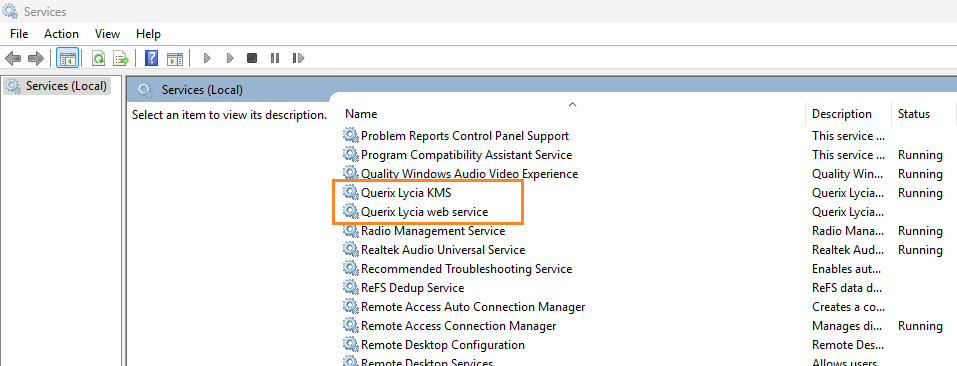
Step 1. In the Services manager of your system, find and stop Querix Lycia web service and Querix Lycia KMS:
Step 2. If you have Jetty configurations in the C:\Program Files\Querix\Lycia\jetty\webapps\public.xml file, or any other static context defined with an XML config:
- Change Jetty 9's property name resourceBase to Jetty 12's baseResourceAsString;
- Change Jetty 9's property name directoriesListed to Jetty 12's dirAllowed.
Step 3. Install / update Java: visit the official Java downloads page, download your Java package (version 17 or later), and proceed with the installation.
Step 4. Run the qpm_gui installer and select the Lycia components you need. Click the Proceed button to finish your update.