Installing Lycia With QPM CLI
Lycia QPM CLI
By default, QPM command line tool installs Lycia to these folders:
To install Lycia with default parameters, use the following command:
You can learn all the available commands (options, presets, and components) in the QPM help:
To view the QPM help, run the command line as a superuser on Linux or with the administrative privileges on Windows:
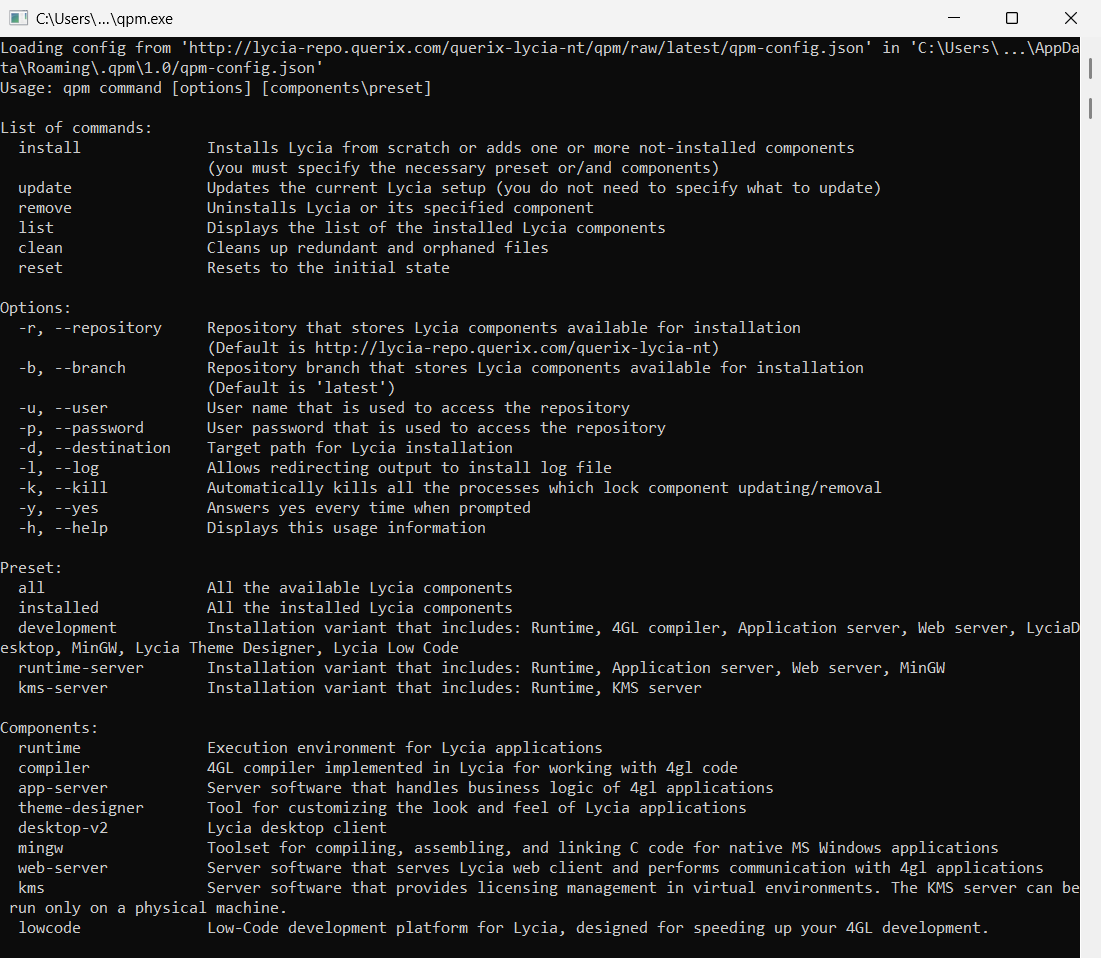
Here are the commands supported by QPM command line tool:
-
install
installs Lycia from scratch or adds one or more not-installed components
(you must specify the necessary preset and / or components)
update
updates the current Lycia setup (you do not need to specify what to update)
remove
uninstalls Lycia or its specified components
list
displays the list of the installed Lycia components
clean
cleans up redundant and orphaned files
-
-r, --repository
repository that stores Lycia components available for installation
-b, --branch
repository branch that stores Lycia components available for installation
-o, --owner
user that serves as a Lycia owner
-g, --group
group that serves as a Lycia owner
-u, --user
user name that is used to access the repository
-p, --password
user password that is used to access the repository
-d, --destination
target path for Lycia installation
-l, --log
allows redirecting output to install log file
-k, --kill
automatically kills any process that locks component's installation / update / removal
-y, --yes
answers 'yes' every time when prompted
-h, --help
displays this usage information
-
Presets:
all
to install all the available Lycia components
installed
to update all the installed Lycia components
preset that includes: Runtime, 4GL compiler, Application server, Web server, LyciaDesktop, Lycia Theme Designer, Lycia LowCode
preset that includes: Runtime, Application server, Web server, MinGW
kms-server
preset that includes: KMS server and Runtime -
Components:
runtime
execution environment for applications
compiler
4GL compiler implemented in Lycia for working with 4GL code
app-server
server software that handles business logic of 4GL applications
web-server
server software that serves Lycia web client and performs communication with 4gl applications
desktop-v2
 Lycia desktop client
mingw
toolset for compiling, assembling, and linking C code for native MS Windows applicationstheme-designer
tool for customizing the look and feel of Lycia applicationskms
Server software that provides licensing management in virtual environments lowcode Low-Code development platform for Lycia, designed for speeding up your 4GL development
Install Lycia on Linux
Installing Lycia via Command Line
 Step 0. Download the Querix Package Manager for Command Line (QPM CLI) from our website's Downloads page. You will need to log in / sign up to access that page.
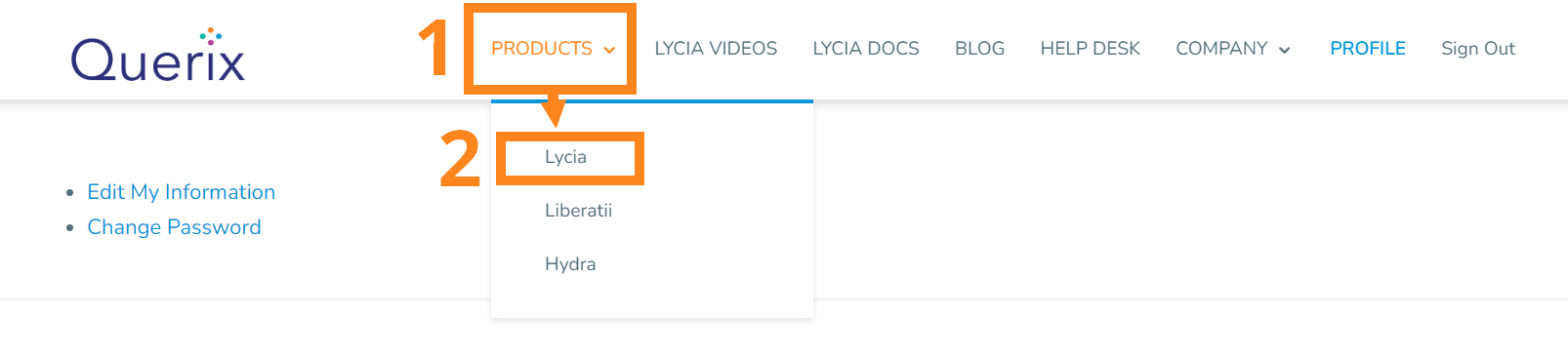
Image 3: Finding Lycia

Choose the package for your system.
Step 1. Update your Java: Lycia version 7.2-3492 or newer requires Java of version 21 or newer.
Update Java on Linux:
Step 2. Install the necessary Lycia components with QPM. For example:
Attention: To install Lycia on Linux, you must have git and git LFS installed on your machine. Otherwise, any installation attempt will fail.
Learn about the available Lycia presets and components and select which of them you want to install.
Here is the sequence of commands you must perform to install Lycia on Linux:
The process of installation is logged to the console.
After the successful installation, you will get this message:
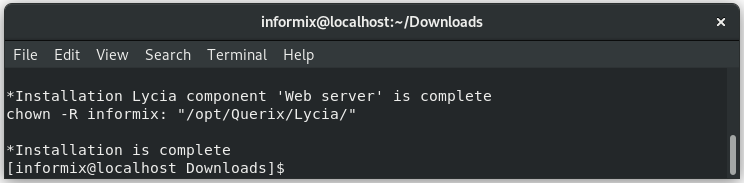
Step 3. Activate your Lycia license.
Querix provides two types of Lycia licenses – trial and commercial.
Installing and activating trial licenses
Installing and activating commercial licenses
You can find more information about Lycia licensing here and here.
To learn about program and project creation in Lycia VS Code Extension, proceed to the Create page of LVSCE documentation.
Install Lycia on Windows
Step 0. Download the Querix Package Manager for Command Line (QPM CLI) from our website's Downloads page. You will need to log in / sign up to access that page.
In the page that opens, find the Downloads button:
Choose the package for your system.
Step 1. Update your Java: Lycia version 7.2-3492 or newer requires Java of version 21 or newer.
Install / update Java: visit the official Java downloads page, download your Java package, and proceed with the installation.
Step 2. Install the necessary Lycia components with QPM. For example:
Learn about the available Lycia presets and components and select which of them you want to install.
The process of installation is logged to the console.
After the successful installation, you will get the Installation is Complete message.
Step 3. Activate your Lycia license.
Querix provides two types of Lycia licenses – trial and commercial.
Installing and activating trial licenses
Installing and activating commercial licenses
You can find more information about Lycia licensing here and here.
To learn about program and project creation in Lycia VS Code Extension, proceed to the Create page of LVSCE documentation.